Blending
So far every surface has been solid: whatever we drew replaced what was behind it. Glass, water, smoke and leaves are not like that. A tinted window has a colour of its own, but you see the room behind it too, mixed with that colour. Producing such a mix is called
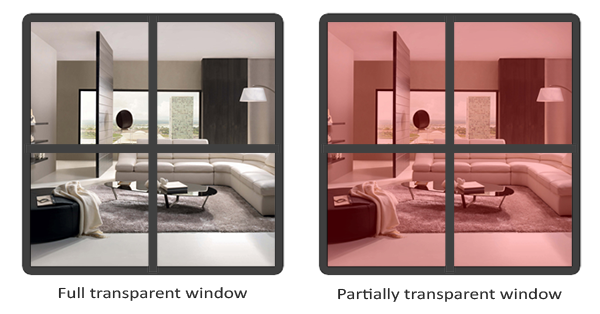
How much of an object shows, and how much of what is behind it, is given by the fourth component of its colour,
Before blending proper, there is an easier case: texels that are either completely there or completely not.
Discarding pixels
Grass is the classic example. Modelling every blade would be expensive, so games paste a picture of a tuft of grass onto a flat quad and stand it on the ground. The picture is square but the grass is not, so its texture marks the gaps with alpha 0 and the grass with alpha 1, with nothing in between. All we need is to drop the pixels where the texture is transparent.
Loading such a texture needs nothing new.
Texture2D albedo : register(t0);
SamplerState sampler0 : register(s0);   // wrap for the floor, clamp for grass and windows

float4 ps_main(vs_out p) : SV_Target
{
    float4 color = albedo.Sample(sampler0, p.uv);
    // Throw the pixel away when it is almost fully transparent (GL: discard).
    clip(color.a - 0.1);
    return color;
}
HLSL's if (texColor.a < 0.1) discard;, and HLSL has a discard statement too;
The grass quad is new geometry: a 1 by 1 square standing upright on y = 0, facing +z.
; A unit square standing on its bottom edge, facing +z: one blade of grass or one window.
quad_vertices real4 -0.5, 0.0, 0.0,   0.0, 0.0, 1.0,   0.0, 1.0
              real4  0.5, 0.0, 0.0,   0.0, 0.0, 1.0,   1.0, 1.0
              real4  0.5, 1.0, 0.0,   0.0, 0.0, 1.0,   1.0, 0.0
              real4 -0.5, 0.0, 0.0,   0.0, 0.0, 1.0,   0.0, 1.0
              real4  0.5, 1.0, 0.0,   0.0, 0.0, 1.0,   1.0, 0.0
              real4 -0.5, 1.0, 0.0,   0.0, 0.0, 1.0,   0.0, 0.0
quad_vertices_size equ 6 * 32
Note the texture coordinates: v is 1 at the bottom of the quad and 0 at the top, because Direct3D's v runs down the image. A handful of positions place the tufts, at y = -0.5 so that their bottom edge stands on the floor:
grass_positions vec3 <-2.2, -0.5, 0.4>
                vec3 <2.6, -0.5, 1.2>
                vec3 <0.6, -0.5, 1.4>
                vec3 <-0.6, -0.5, -1.8>
Without the
Clamping the edges
One more detail. Our sampler wraps, so a coordinate just past 1.0 reads from just past 0.0. Bilinear filtering at the very top row of a texture therefore mixes in a little of the bottom row. For a tiled floor that is the point, but for a grass image whose top is transparent and whose bottom is solid, it leaves a faint line along the top edge of the quad. The fix is to clamp instead, so the edge texel is repeated outwards. In OpenGL that is a property of the texture (GL_CLAMP_TO_EDGE). In Direct3D, filtering and addressing belong to the sampler, a separate object, so we make a second sampler with s0 for the grass and the windows:
invoke create_sampler, D3D11_FILTER_ANISOTROPIC, D3D11_TEXTURE_ADDRESS_WRAP
mov sampler, rax
invoke create_sampler, D3D11_FILTER_ANISOTROPIC, D3D11_TEXTURE_ADDRESS_CLAMP
mov clamp_sampler, rax
; grass: clipped, so in any order
vcall context, ID3D11DeviceContext_PSSetSamplers, 0, 1, ADDR clamp_sampler
invoke bind_texture, 0, grass
lea rsi, grass_positions
xor ebx, ebx
blades:
invoke m4_translate, ADDR model, rsi
invoke draw_vertices, transforms_buffer, ADDR t, quad_vb, 6, ADDR model
add rsi, sizeof vec3
inc ebx
cmp ebx, 4
jb bladesThe same texture could be drawn with either sampler; that choice is now made per draw rather than per texture.
Blending
Discarding is all or nothing. For the windows we want to see the glass and what is behind it, which needs real blending. Blending happens in the output merger, after the pixel shader, and combines two colours: the
where the two \(F\) are
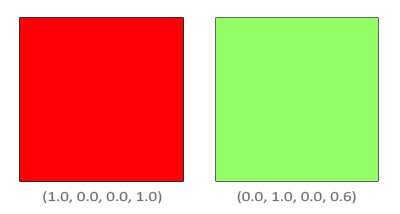
We want the green to contribute 60% and the red behind it the remaining 40%. So the source factor is the source's alpha, and the destination factor is one minus that:
\[ C_{result} = \begin{pmatrix} 0.0 \\ 1.0 \\ 0.0 \\ 0.6 \end{pmatrix} \cdot 0.6 + \begin{pmatrix} 1.0 \\ 0.0 \\ 0.0 \\ 1.0 \end{pmatrix} \cdot (1 - 0.6) = \begin{pmatrix} 0.4 \\ 0.6 \\ 0.0 \\ \ldots \end{pmatrix} \]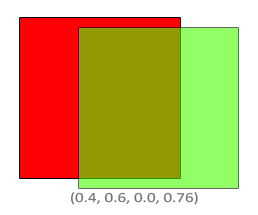
This "source alpha, one minus source alpha" pair is ordinary transparency, and nearly the only blend you will use for see-through surfaces. In OpenGL it is glEnable(GL_BLEND) plus glBlendFunc(GL_SRC_ALPHA, GL_ONE_MINUS_SRC_ALPHA). In Direct3D it is, as usual, a state object: a
; -> rax: a blend state for transparency: out = src * src_alpha + dst * (1 - src_alpha)
align 16
create_alpha_blend proc
    local desc:D3D11_BLEND_DESC, state:qword
    invoke mem_zero, ADDR desc, sizeof D3D11_BLEND_DESC
    mov desc.RenderTarget.BlendEnable, 1
    mov desc.RenderTarget.SrcBlend, D3D11_BLEND_SRC_ALPHA
    mov desc.RenderTarget.DestBlend, D3D11_BLEND_INV_SRC_ALPHA
    mov desc.RenderTarget.BlendOp, D3D11_BLEND_OP_ADD
    mov desc.RenderTarget.SrcBlendAlpha, D3D11_BLEND_ONE
    mov desc.RenderTarget.DestBlendAlpha, D3D11_BLEND_INV_SRC_ALPHA
    mov desc.RenderTarget.BlendOpAlpha, D3D11_BLEND_OP_ADD
    mov desc.RenderTarget.RenderTargetWriteMask, D3D11_COLOR_WRITE_ENABLE_ALL
    vcall device, ID3D11Device_CreateBlendState, ADDR desc, ADDR state
    AssertHr
    mov rax, state
    ret
create_alpha_blend endp
The settings are per render target: RenderTarget is an array of eight, and a pass that draws into several targets at once can blend each one differently. desc.RenderTarget.BlendEnable names a field of the array's first element, RenderTarget[0], which is the only one we fill. SrcBlend and DestBlend are the two factors, and BlendOp how the two halves are combined. INV_SRC_ALPHA is Direct3D's name for "one minus source alpha": INV always means "one minus". The full set of factors mirrors OpenGL's:
| Factor | Value | OpenGL |
|---|---|---|
| D3D11_BLEND_ZERO | \(0\) | GL_ZERO |
| D3D11_BLEND_ONE | \(1\) | GL_ONE |
| D3D11_BLEND_SRC_COLOR | \(C_{source}\) | GL_SRC_COLOR |
| D3D11_BLEND_INV_SRC_COLOR | \(1 - C_{source}\) | GL_ONE_MINUS_SRC_COLOR |
| D3D11_BLEND_DEST_COLOR | \(C_{destination}\) | GL_DST_COLOR |
| D3D11_BLEND_INV_DEST_COLOR | \(1 - C_{destination}\) | GL_ONE_MINUS_DST_COLOR |
| D3D11_BLEND_SRC_ALPHA | source alpha | GL_SRC_ALPHA |
| D3D11_BLEND_INV_SRC_ALPHA | 1 - source alpha | GL_ONE_MINUS_SRC_ALPHA |
| D3D11_BLEND_DEST_ALPHA | destination alpha | GL_DST_ALPHA |
| D3D11_BLEND_INV_DEST_ALPHA | 1 - destination alpha | GL_ONE_MINUS_DST_ALPHA |
| D3D11_BLEND_BLEND_FACTOR | a constant colour | GL_CONSTANT_COLOR |
| D3D11_BLEND_INV_BLEND_FACTOR | 1 - the constant colour | GL_ONE_MINUS_CONSTANT_COLOR |
The constant colour, OpenGL's
Alpha gets factors of its own: SrcBlendAlpha, DestBlendAlpha and BlendOpAlpha. OpenGL only separates them if you call
The operation does not have to be an addition. BlendOp can be D3D11_BLEND_OP_ADD (source plus destination, the usual), SUBTRACT (source minus destination), REV_SUBTRACT (destination minus source), MIN or MAX, the same five as
Rendering semi-transparent textures
Now the windows. They use the same quad, a different texture, and five positions of their own:
window_positions vec3 <-1.5, -0.5, -0.48>
                 vec3 <1.5, -0.5, 0.51>
                 vec3 <0.0, -0.5, 0.7>
                 vec3 <-0.3, -0.5, -2.3>
                 vec3 <0.5, -0.5, -0.6>
The blend state is bound only for them, and set back to null (no blending) afterwards, together with the wrap sampler:
; windows: blended, so the farthest first
call sort_windows
vcall context, ID3D11DeviceContext_OMSetBlendState, alpha_blend, 0, D3D11_DEFAULT_SAMPLE_MASK
invoke bind_texture, 0, glass
xor ebx, ebx
windows:
    lea rax, window_order
    mov eax, [rax + rbx * 4]
    imul eax, eax, sizeof vec3
    lea rsi, window_positions
    add rsi, rax
    invoke m4_translate, ADDR model, rsi
    invoke draw_vertices, transforms_buffer, ADDR t, quad_vb, 6, ADDR model
    inc ebx
    cmp ebx, 5
    jb windows
vcall context, ID3D11DeviceContext_OMSetBlendState, 0, 0, D3D11_DEFAULT_SAMPLE_MASK
vcall context, ID3D11DeviceContext_PSSetSamplers, 0, 1, ADDR sampler
The second argument of
The windows go through the same pixel shader as the grass,
Notice window_order in the loop: the window drawn ebx-th is the one whose index is in window_order[ebx], and its position is found by multiplying that index by the size of a vec3. If we drew the windows in the order of the array, some would look wrong: a window seen through another window would be missing, as if the nearer glass were opaque. The cause is the depth buffer. A blended pixel still writes its depth like any other. If the near window is drawn first, its glass fills the depth buffer at its distance, and when the far window comes along afterwards, its pixels are behind and fail the depth test. They are never blended in, because they never get that far.
Blending reads what is already in the render target, so whatever should show through a transparent surface has to be there before the surface is drawn. Hence the rule.
Don't break the order
When a scene mixes opaque and transparent objects:
- Draw everything opaque first, in any order; the depth buffer sorts it out.
- Sort the transparent objects by distance from the camera.
- Draw the transparent objects from the farthest to the nearest.
The opaque floor and cubes come first, then the grass, which counts as opaque since std::map, which keeps its keys sorted, and walks it backwards. We have five windows, so we just sort five indices directly, every frame, by their distance to the camera.
; Puts the windows in window_order from the farthest from the camera to the nearest.
align 16
sort_windows proc
    USING rbx, rsi, rdi, r12
    SaveRegs
    ; A global indexed by a register needs its address in a register too: [label + rbx * 4] would
    ; be a 32-bit absolute address, which a 64-bit program loaded above 4 GB cannot use.
    lea rdi, window_order
    lea r12, window_distance
    xor ebx, ebx
    distances:
        mov [rdi + rbx * 4], ebx
        imul eax, ebx, sizeof vec3
        lea rdx, window_positions
        add rdx, rax
        invoke v3_sub, ADDR offset_to_window, rdx, ADDR cam.position
        invoke v3_length, ADDR offset_to_window
        movss real4 ptr [r12 + rbx * 4], xmm0
        inc ebx
        cmp ebx, 5
        jb distances
    ; selection sort on the distances, carrying the order along
    xor ebx, ebx
    outer:
        lea esi, [ebx + 1]
        inner:
            cmp esi, 5
            jae inner_done
            movss xmm0, real4 ptr [r12 + rsi * 4]
            comiss xmm0, real4 ptr [r12 + rbx * 4]
            jbe in_order
                movss xmm1, real4 ptr [r12 + rbx * 4]
                movss real4 ptr [r12 + rbx * 4], xmm0
                movss real4 ptr [r12 + rsi * 4], xmm1
                mov eax, [rdi + rbx * 4]
                mov edx, [rdi + rsi * 4]
                mov [rdi + rbx * 4], edx
                mov [rdi + rsi * 4], eax
            in_order:
            inc esi
            jmp inner
        inner_done:
        inc ebx
        cmp ebx, 4
        jb outer
    RestoreRegs
    ret
sort_windows endp
Each slot ebx ends up holding the farthest of the windows not yet placed: whenever a later slot esi is farther, the two swap, both their distances and their indices. jbe ("below or equal") rather than jle. Sorting indices rather than positions means the positions array is never touched, and a map would only add allocations for no gain.
window_distance[rbx * 4]: a global is normally addressed relative to the instruction pointer, and an address with an index register has no room for that, so MASM would emit a 32-bit absolute address, which the 64-bit linker refuses. Hence the lea rdi, window_order and lea r12, window_distance first, and [rdi + rbx * 4] after; the drawing loop does the same with lea rax, window_order. Locals have no such problem, being addressed from rbp.
With the windows drawn back to front, every window sees the ones behind it:
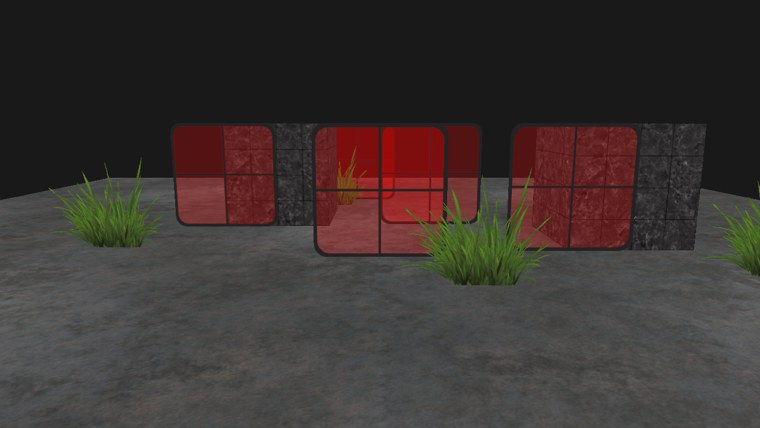
Look at the middle: a tuft of grass and the side of a cube show through the glass, and where two windows overlap the tint is deeper, one layer of red on top of another. The full program is here, and its shader here.
Sorting by the distance to an object's position works for these small, flat, unrotated quads. It is not a general solution. Large objects can be partly in front of and partly behind each other, so no order is right; objects that intersect cannot be sorted at all; and a concave transparent mesh can overlap itself. Engines deal with this in various ways: sorting per triangle, splitting meshes, or
Additional resources
- Configuring blending functionality: Microsoft's guide to blend states.
- D3D11_BLEND: every blend factor, including the dual-source ones we skipped.
- Alpha Blending: To Pre or Not To Pre: NVIDIA on premultiplied alpha, a variant of the blend used here that filters better.
Exercises
- Draw the windows in array order (skip the
call sort_windows, and fill window_order with 0 to 4 once) and fly around until you find the depth problem described above. - Remove the
clip from the pixel shader and look at the grass. Then put it back and draw the grass with the wrap sampler instead of the clamp one, and look closely at the top edge of each tuft. - Make the windows add light instead of tinting: set SrcBlend to D3D11_BLEND_ONE and DestBlend to D3D11_BLEND_ONE. Does the drawing order still matter?