Face culling
Picture a cube and ask how many of its faces you can see at once. However you turn it, the answer is at most three; from straight ahead it is one. The other faces point away from you and are hidden behind the ones that face you. Yet so far we have sent all six faces through the pipeline every frame, and for every pixel they cover the pixel shader has run, only for the depth test to throw the result away (or, if the back faces happen to be drawn first, to be painted over). For a cube that is at least half of the pixel shading wasted.
Winding order
The three corners of a triangle, taken in the order we listed them, go around it either clockwise or counter-clockwise. That direction is the triangle's
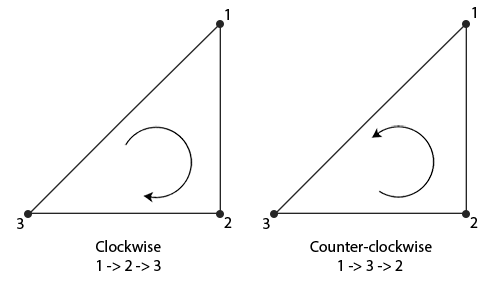
The useful part is when the winding is judged: after the vertex shader, on the projected triangle as it lands on screen. A triangle that runs counter-clockwise when you look at its front runs clockwise when you look at it from behind, just as a clock face seen from the back of a glass clock appears to run backwards. So if every triangle of a closed mesh is listed counter-clockwise as seen from outside, then after projection the faces turned towards the camera come out counter-clockwise and the faces turned away come out clockwise:
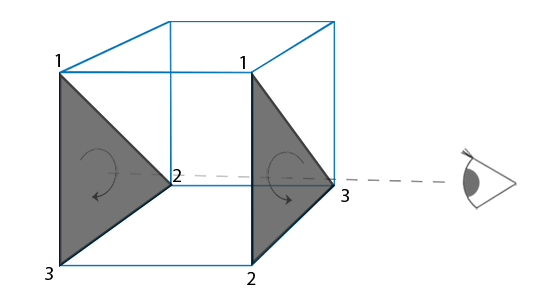
Both triangles in LearnOpenGL's picture were listed in the same order, counter-clockwise from outside the cube. From where the viewer stands, only the near one still reads counter-clockwise. The rasterizer calls that one a
Deciding the winding costs the rasterizer almost nothing. Once the corners have been divided by w, it has their 2D positions \((x_0, y_0)\), \((x_1, y_1)\), \((x_2, y_2)\) on the screen, and the sign of
\[ A = \tfrac{1}{2}\left[(x_1 - x_0)(y_2 - y_0) - (x_2 - x_0)(y_1 - y_0)\right] \]says which way they go round. This is the signed area of the triangle: with y pointing up, as in normalized device coordinates, it is positive for counter-clockwise corners and negative for clockwise ones. (In pixel coordinates, where y points down, the signs swap; the APIs define clockwise as you see it on screen, so you never need to care.) A triangle seen exactly edge-on has an area of zero and covers no pixels anyway. Since this is computed per triangle, before any pixel is touched, a culled triangle costs only its three vertex shader runs.
Which winding counts as "front" is a convention, and the two APIs disagree. OpenGL treats counter-clockwise as front by default; Direct3D treats clockwise as front. LearnOpenGL's vertex data, and ours, is counter-clockwise from outside. Here is the first face of the cube that the lessons in this chapter share:
// a unit cube: position, normal, texture coordinate; counter-clockwise from outside
cube_vertices: [288]f32 = {
    // right (+x)
     0.5, -0.5,  0.5,    1.0,  0.0,  0.0,   0.0, 1.0,
     0.5, -0.5, -0.5,    1.0,  0.0,  0.0,   1.0, 1.0,
     0.5,  0.5, -0.5,    1.0,  0.0,  0.0,   1.0, 0.0,
     0.5, -0.5,  0.5,    1.0,  0.0,  0.0,   0.0, 1.0,
     0.5,  0.5, -0.5,    1.0,  0.0,  0.0,   1.0, 0.0,
     0.5,  0.5,  0.5,    1.0,  0.0,  0.0,   0.0, 0.0,
...
Stand on the +x side and look at it: z = +0.5 is on your left and z = -0.5 on your right. The first triangle goes bottom-left, bottom-right, top-right, which is counter-clockwise; the second goes bottom-left, top-right, top-left, counter-clockwise too. It is worth doing this exercise for a face or two of your own vertex data, because a single triangle listed the wrong way round is invisible without culling and a hole with it.
Rather than reorder all of it for Direct3D, we tell the rasterizer which winding we use. Every lesson's rasterizer state does that, since Hello Triangle:
// GL's conventions rather than D3D's: counter-clockwise triangles face the
// viewer, and nothing is culled.
raster_desc: D3D11_RASTERIZER_DESC = {
    .FillMode = D3D11_FILL_MODE.D3D11_FILL_SOLID,
    .CullMode = D3D11_CULL_MODE.D3D11_CULL_NONE,
    .FrontCounterClockwise = 1,
    .DepthClipEnable = 1,
};
FrontCounterClockwise is OpenGL's glFrontFace(GL_CCW). The other half of the conventions is CullMode. OpenGL culls nothing until you call glEnable(GL_CULL_FACE), while Direct3D's default rasterizer state culls back faces. The lessons have kept OpenGL's behaviour, culling off, so that nothing went missing while the winding was still a mystery. It is time to turn it on.
Face culling
In Direct3D, culling is the CullMode of the rasterizer state, one of three values:
- D3D11_CULL_NONE: draw every triangle, whichever way it faces.
- D3D11_CULL_BACK: drop back faces. This is the one you want for closed, solid objects.
- D3D11_CULL_FRONT: drop front faces, so only the insides remain.
OpenGL's
Since rasterizer states are immutable, the lesson makes one per mode at startup, each a copy of the usual description with a different CullMode:
// One rasterizer state per mode; FrontCounterClockwise as in raster_desc.
cull_modes: [3]D3D11_CULL_MODE = { D3D11_CULL_MODE.D3D11_CULL_NONE, D3D11_CULL_MODE.D3D11_CULL_BACK, D3D11_CULL_MODE.D3D11_CULL_FRONT };
cull_states: [3]*ID3D11RasterizerState = {};
for (i: u32 = 0; i < 3; i += 1) {
    cull_desc: D3D11_RASTERIZER_DESC = raster_desc;
    cull_desc.CullMode = cull_modes[i];
    ID3D11Device_CreateRasterizerState(device, cull_desc&, cull_states[i]&);
}
mode: u32 = 2;
Tab steps through none, back and front. The program starts in mode 2, culling front faces, because that is the mode where something visibly happens. In the render loop, the chosen state is bound around the cubes only:
if (key_pressed(VK_TAB)) { mode = (mode + 1) % 3; }shader_use(context, s&);
bind_texture(context, 0, floor_texture);
draw_vertices(context, transforms_buffer, t&, plane_vb, 6, m4_identity());
ID3D11DeviceContext_RSSetState(context, cull_states[mode]);
bind_texture(context, 0, cube_texture);
draw_vertices(context, transforms_buffer, t&, cube_vb, 36, m4_translate(v3(-1.0, 0.0, -1.0)));
draw_vertices(context, transforms_buffer, t&, cube_vb, 36, m4_translate(v3(2.0, 0.0, 0.0)));
ID3D11DeviceContext_RSSetState(context, raster_state);The floor keeps the default state without culling. It is a single flat quad, not a closed shape, so there is no "inside" for it to hide; with back faces culled it would simply vanish when seen from below. The same goes for the grass and windows of the previous chapter, which should be visible from both sides. Culling is for closed meshes.
With back faces culled, the picture does not change at all, which is exactly the point: the faces we skip are the ones we could never see. On the left, back-face culling; on the right, front-face culling:
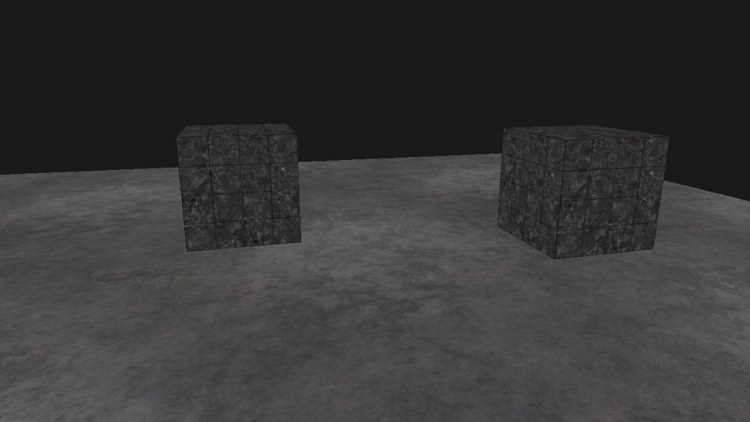
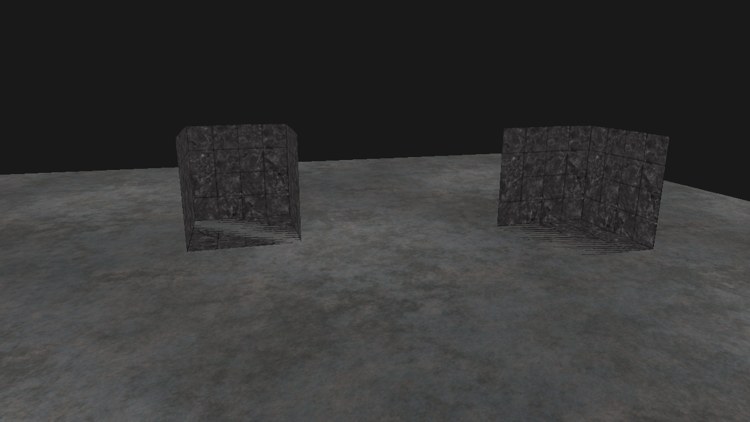
Culling the front faces removes the walls facing us and leaves the far walls, seen from inside: the cubes become open boxes. That is the same image LearnOpenGL gets by flipping the front-face convention to clockwise, and you can get it the same way here by setting FrontCounterClockwise to 0 and culling back faces (try it in the exercises). Notice also the stripes on the boxes' floors: that is the z-fighting between each cube's bottom face and the metal floor, described in Depth testing. Fly inside a cube with back faces culled and its walls disappear around you, since from inside every wall faces away.
How much does culling save? For a convex shape such as our cube, the back faces are always hidden behind front ones, so the saving is all the pixel shading those faces would have cost, which can be half or more. If the front faces happened to be drawn first, early depth testing would already have rejected most of the back faces' pixels, and the saving is smaller; but culling also skips rasterizing those triangles at all, and it does not depend on drawing order. Meshes exported from modelling tools come with consistent winding, almost always counter-clockwise, so turning culling on for them is nearly free. The one thing to keep track of is which objects are open or two-sided, and must be drawn without it.
Front or back in the shader
The rasterizer's decision is also available to the pixel shader, which helps with the objects that must not be culled. A pixel shader input marked SV_IsFrontFace, a bool, says whether the triangle being shaded was a front face; it is GLSL's gl_FrontFacing. A two-sided leaf could use it to flip its normal on the back, so that both sides are lit correctly, or a cutaway view could paint the inside of a mesh in a different colour. With FrontCounterClockwise set, "front" means the same here as for culling. Advanced HLSL uses it to draw the insides of the cubes as a checkerboard.
The full program is here, and its shader here.
Additional resources
- D3D11_RASTERIZER_DESC: the rasterizer state, with the defaults of each field.
- Getting started with the rasterizer stage: Microsoft's overview of the stage that does the culling.
- LearnOpenGL's Face culling: the OpenGL version, with
glCullFace andglFrontFace .
Exercises
- Set FrontCounterClockwise to 0 in
raster_descand step through the three modes again. Which mode now shows the insides, and why? - List the cube's triangles clockwise from outside instead (swap the second and third vertex of every triangle), and find the rasterizer settings that make back-face culling work with the new data.
- Draw the floor with back-face culling too, and fly below it. Then work out which way the floor's triangles wind as seen from above.