Lighting maps
The materials of the previous chapter give each object a character of its own, but one material per object is still very coarse. Few things in the world are made of a single substance. A car has glossy paint, glass that reflects the sky, matt rubber tyres and polished chrome trim, all in one object, and even the paint varies in colour from panel to panel. A single ambient, diffuse and specular colour for the whole car cannot express any of that. What we want is a material that can change from one point of the surface to the next.
We know how to make something vary across a surface already: textures. In this chapter we move the material into textures, one texel at a time. A texture that holds the diffuse colours is a
Diffuse maps
A diffuse map is nothing new. It is an ordinary colour texture, the same kind we sampled in Textures; the name only says what the lighting does with it. Instead of one diffuse colour for the whole object, the pixel shader looks up the colour at the pixel's texture coordinate. Here is the image we use, a wooden crate with a steel frame:
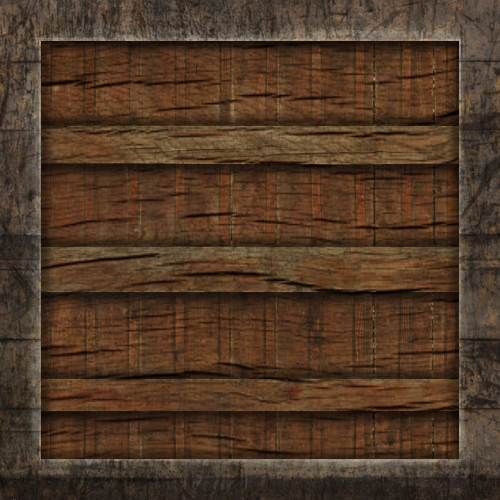
The ambient colour comes from the same texture. In the last chapter the ambient and diffuse material colours were equal anyway, and now that the light controls how strong ambient light is, a separate ambient colour has little to add. (If you really wanted different ambient colours across the surface, that would take a third texture.)
LearnOpenGL puts its sampler2D inside the GLSL material struct and connects it to a texture unit with Texture2D is the image, a SamplerState is how to read it (filtering and wrapping), and each sits in its own kind of register, declared at the top level of the file:
Texture2D diffuse_map : register(t0);
Texture2D specular_map : register(t1);
SamplerState linear_wrap : register(s0);
Register t0 is texture slot 0, much like OpenGL's texture unit 0, and the register in the declaration is the whole connection: there is nothing to set from the program to say which slot a texture name reads.
The vertex data has carried texture coordinates all along, and the vertex shader has been passing them through as uv since Colors, so the pixel shader can sample straight away:
float3 albedo = diffuse_map.Sample(linear_wrap, p.uv).rgb;
...
float3 ambient = light_ambient * albedo;
float3 diffuse = light_diffuse * max(dot(n, to_light), 0.0) * albedo;
albedo is the usual name for a surface's base colour, the colour it has when lit by plain white light. It takes the place of both material_ambient and material_diffuse.
Loading the maps
Both images are loaded with the
maps: [2]*ID3D11ShaderResourceView = {
    load_texture(device, context, filesystem_path("resources/textures/container2.png"), 0),
    load_texture(device, context, filesystem_path("resources/textures/container2_specular.png"), 0),
};
The last argument says whether the file holds gamma-encoded colours that sampling should decode. We pass 0 for both, as LearnOpenGL effectively does at this point; Gamma Correction explains what that flag is for and why the diffuse map should really have it.
Because they sit next to each other in an array, one call binds both views, to slots t0 and t1, right before the cube is drawn:
ID3D11DeviceContext_PSSetShaderResources(context, 0, 2, maps[0]&);
The sampler is the anisotropic, wrapping one we have used since Textures, created once and bound to s0 for the whole program. (Its HLSL name, linear_wrap, is a little modest: the sampler actually filters anisotropically, which is linear filtering and then some.)
sampler_desc: D3D11_SAMPLER_DESC = {
    .Filter = D3D11_FILTER.D3D11_FILTER_ANISOTROPIC,
    .AddressU = D3D11_TEXTURE_ADDRESS_MODE.D3D11_TEXTURE_ADDRESS_WRAP,
    ...
};
...
ID3D11DeviceContext_PSSetSamplers(context, 0, 1, sampler&);
With only the diffuse map in use, the crate already looks far more convincing than the coral cube ever did. But the highlights are wrong. LearnOpenGL has a program for this halfway stage, with a single specular colour for the whole crate, and its picture shows the problem:
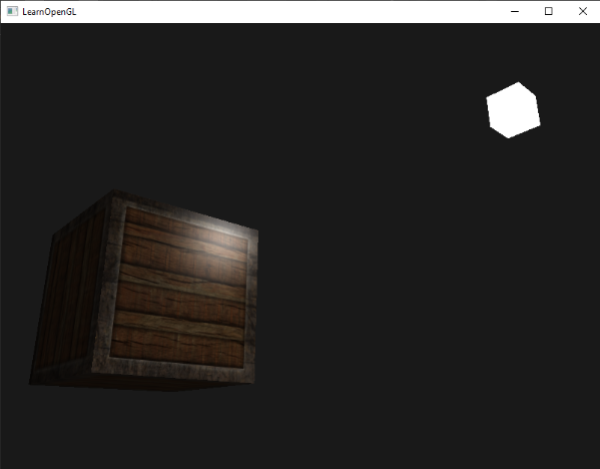
With one specular value for the whole crate, the wood shines exactly as brightly as the steel. Wood, at least old crate wood, hardly shines at all. We could turn the specular value down to nothing, but then the steel would lose its shine too. What we need is to say, per texel, how shiny the surface is.
Specular maps
That is a specular map: a texture that holds the specular intensity of each texel. Ours is a greyscale image made from the crate texture:
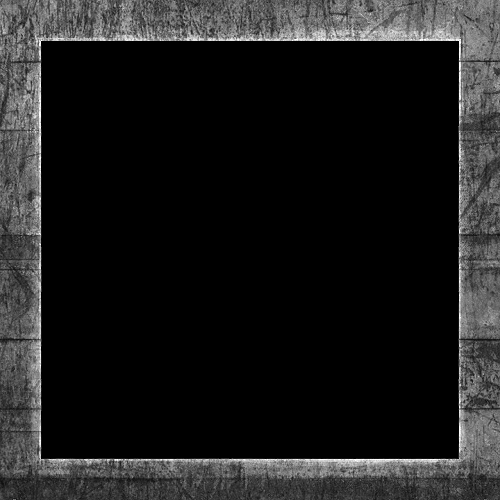
Black means no highlight at all, white means a full-strength one, and greys fall between. The wooden planks have been painted black, so they never shine. The steel frame is grey to white, with its scratches and cracks darker, so highlights on the frame will break up along the scratches as real worn steel does. Images like this are usually made from the diffuse texture in an image editor: cut away the parts that should not shine, turn the rest grey, and adjust the contrast.
Strictly, wood does have a highlight, just a very broad and faint one. Pretending it has none is a reasonable simplification for a crate.
It is worth being clear about what a texel's value means. The specular term is multiplied by it, channel by channel, so a texel of 0.5 halves the highlight at that point and a texel of 0.1 leaves only a trace of it. The shininess, the exponent, is not in the map; it stays one number for the whole crate, so the highlight has the same size everywhere and only its strength varies. A map for the exponent as well is perfectly possible (it would be a third texture, or a fourth channel of the specular map), and the roughness maps of PBR are essentially that idea.
Sampling specular maps
The specular map is just a second texture. We already declared it in t1 and bound it with the diffuse map, so all that is left is to read it and use it in place of the specular material colour:
float3 shine = specular_map.Sample(linear_wrap, p.uv).rgb;
...
float3 specular = light_specular * pow(max(dot(to_eye, reflect(-to_light, n)), 0.0), shininess) * shine;
The brighter the texel, the stronger the highlight there; on black wood the whole specular term is multiplied by zero. We read all three channels, so a coloured specular map would tint its highlights too. That is rarely realistic, since the colour of a highlight comes mostly from the light, which is why specular maps are almost always grey.
Here is the whole pixel shader:
float4 ps_main(vs_out p) : SV_Target
{
    float3 albedo = diffuse_map.Sample(linear_wrap, p.uv).rgb;
    float3 shine = specular_map.Sample(linear_wrap, p.uv).rgb;

    float3 n = normalize(p.normal);
    float3 to_light = normalize(light_position - p.world);
    float3 to_eye = normalize(view_position - p.world);

    float3 ambient = light_ambient * albedo;
    float3 diffuse = light_diffuse * max(dot(n, to_light), 0.0) * albedo;
    float3 specular = light_specular * pow(max(dot(to_eye, reflect(-to_light, n)), 0.0), shininess) * shine;

    return float4(ambient + diffuse + specular, 1.0);
}
Apart from where the material comes from, it is the shader of the previous chapter, line for line. Note the .rgb on each sample:
Where the shininess went
With both colours in textures, the material has only its shininess left. Rather than give a single float a constant buffer of its own, the lesson tucks it into the light's buffer, in the four bytes that would otherwise be padding after the light's position:
cbuffer light : register(b1)
{
    float3 light_position;
    float shininess;
    float3 light_ambient;
    float3 light_diffuse;
    float3 light_specular;
};
Strictly the shininess is a property of the surface, not the light, but a float after a float3 packs into the same register for free, and with only one object in the scene the distinction costs nothing. The lesson sets it to 64, a little tighter than before, and gives the light a white colour with the values LearnOpenGL uses:
light: light_constants = {
    .position = v3(1.2, 1.0, 2.0),
    .shininess = 64.0,
    .ambient = v3(0.2, 0.2, 0.2),
    .diffuse = v3(0.5, 0.5, 0.5),
    .specular = v3(1.0, 1.0, 1.0),
};
with the specular part, as before, at full white. To show the maps off from every side, the crate turns slowly about the vertical axis:
draw_cube(context, transforms_buffer, t&, m4_rotate(current_frame * 0.3, v3(0.0, 1.0, 0.0)));
Since
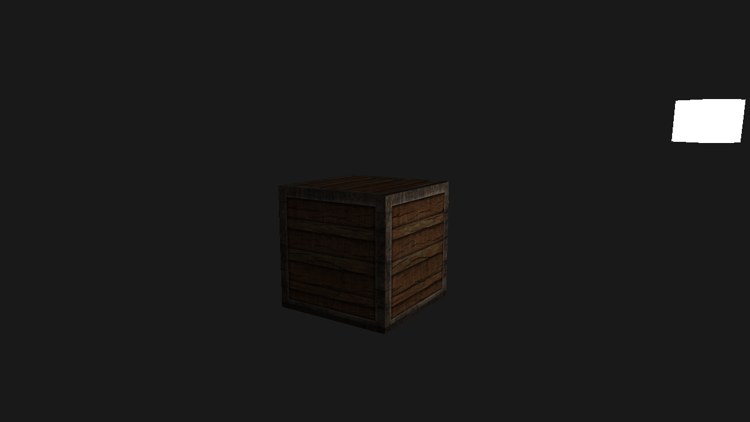
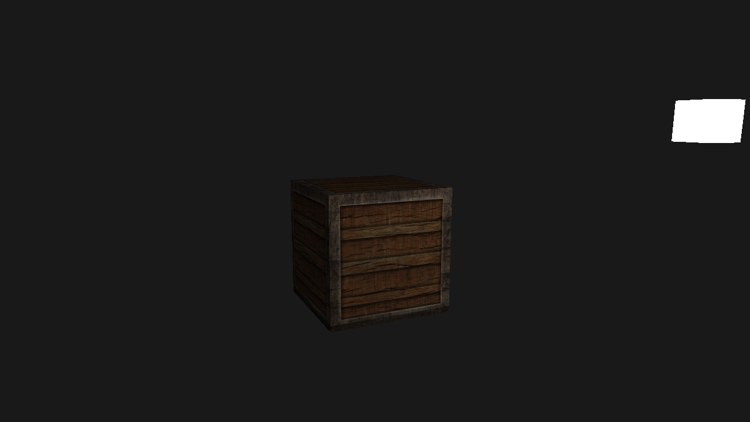
Now the crate looks like what it is: wood inside a steel frame. Move the camera so the light reflects towards you off a face, and only the steel lights up with a highlight, broken by the scratches, while the planks stay matt. Two textures and a handful of shader lines have bought an enormous amount of detail. Later chapters add more kinds of map in the same spirit: normal maps for surface bumps, and in PBR maps for roughness and metalness.
The full program is here, and its shader here.
Additional resources
- Sample (DirectX HLSL Texture Object): the reference for the texture lookup we use.
- PSSetShaderResources: binding several shader resource views at once.
- LearnOpenGL's Lighting maps: the OpenGL version of this chapter.
Exercises
- Change the light's ambient, diffuse and specular values and see how each affects the crate.
- Invert the specular map in the shader, using
1.0 - shine, so the wood shines and the steel does not. Why do parts of the frame still shine a little? - Add an
emission map : a texture of light that the surface gives off by itself, regardless of any lamp. Loadresources/textures/matrix.jpgas a third texture, bind it tot2, and add its colour to the result, so the crate glows green where the texture is bright.