Colors
We have been throwing colours around since the first triangle, without ever saying what a colour is. Before we start lighting things, that deserves a proper answer, because lighting is, in the end, nothing but arithmetic on colours. In this chapter we pin down what an object's colour means, and then build the small scene that every lighting chapter after this one works in.
Light in the real world comes in a continuous spread of wavelengths, far more than any screen can show. A monitor gets by with three: it mixes red, green and blue light at different strengths, and our eyes read the mix as a single colour. So in a program a colour is three numbers, one per channel, each running from 0 (none of that channel) to 1 (all of it). We have written colours as float4 in HLSL already; the fourth number, alpha, is about transparency, and in lighting we mostly ignore it. A warm coral colour, for example, is
.object_color = v3(1.0, 0.5, 0.31),full red, half green, and a little under a third of blue.
Colours are what gets reflected
Here is the part that makes lighting work. The colour we see when we look at an object is not something the object "has" on its own. It is the part of the incoming light that the object sends back towards us. Sunlight looks white because it carries a bit of every visible colour. When it hits a coral toy, the toy swallows most of the blue, a fair amount of the green, and throws back nearly all of the red. What reaches our eye is that leftover mix, and we call it coral.

LearnOpenGL's diagram above shows the idea: white light arrives with every colour in it, and only the coral part leaves. (The real physics is richer than this, and the PBR chapters come back to it, but this picture carries us a long way.)
That gives us a precise meaning for "the colour of an object": for each of red, green and blue, the fraction of that channel's light the object reflects. And it gives us the rule for computing what we see. Take the light's colour and the object's colour, and multiply them channel by channel:
\[ \text{result} = (L_r \cdot O_r,\; L_g \cdot O_g,\; L_b \cdot O_b) \]
With white light, \(L = (1, 1, 1)\), the result is the object's colour unchanged, \((1.0, 0.5, 0.31)\): coral under white light looks coral, as it should. Now shine a pure green light on the same toy, \(L = (0, 1, 0)\). There is no red or blue arriving, so none can be reflected, and of the green that does arrive the toy sends back half:
light  = (0.0, 1.0, 0.0)
object = (1.0, 0.5, 0.31)
result = (0.0, 0.5, 0.0)     a dark green
The coral toy has turned dark green. Nothing about the object changed; it simply had no red light to give back. One more, with a murky olive light:
light  = (0.33, 0.42, 0.18)
object = (1.0,  0.5,  0.31)
result = (0.33, 0.21, 0.06)  a dull brown
This channel-by-channel product is the core of every lighting model we will write. In HLSL it costs nothing to say: multiplying two float3s with * multiplies them component by component. (That is not the same as
A lighting scene
To experiment with light we need two things in the world: an object for the light to fall on, and something that shows where the light is. We use the cube from the previous chapters for both. A big one sits at the origin as our subject; a small one, scaled down to a fifth, marks the light's position. On its own a light is just a point in space with no shape at all, so this little
The vertex data
The cube's vertex array already carries everything the lighting chapters will need, so we set it up once here and leave it alone. Every vertex has a position, a
// a unit cube: position, normal, texture coordinate; counter-clockwise from outside
cube_vertices: [288]f32 = {
    // right (+x)
     0.5, -0.5,  0.5,    1.0,  0.0,  0.0,   0.0, 1.0,
     0.5, -0.5, -0.5,    1.0,  0.0,  0.0,   1.0, 1.0,
     0.5,  0.5, -0.5,    1.0,  0.0,  0.0,   1.0, 0.0,
...
};
Thirty-six vertices of eight floats is 288. The input layout names the three attributes and where each starts within a vertex, in bytes:
vertex_layout: [3]D3D11_INPUT_ELEMENT_DESC = {
    { .SemanticName = "POSITION", .Format = DXGI_FORMAT.DXGI_FORMAT_R32G32B32_FLOAT, .AlignedByteOffset = 0 },
    { .SemanticName = "NORMAL", .Format = DXGI_FORMAT.DXGI_FORMAT_R32G32B32_FLOAT, .AlignedByteOffset = 12 },
    { .SemanticName = "TEXCOORD", .Format = DXGI_FORMAT.DXGI_FORMAT_R32G32_FLOAT, .AlignedByteOffset = 24 },
};
and when the buffer is bound we give the stride, 32 bytes per vertex:
cube_vb: *ID3D11Buffer = create_buffer(device, D3D11_BIND_VERTEX_BUFFER, cube_vertices[0]&, sizeof(cube_vertices));
stride: UINT = 32;
offset: UINT = 0;
LearnOpenGL gives the light cube a VAO of its own, so that changing the container's attribute setup later cannot disturb the lamp. In Direct3D that question does not come up. There is no VAO: the input layout belongs to the shader (our
POSITION. Creating an input layout with more elements than the shader uses is fine: Direct3D checks that every input the shader does read is supplied, and simply ignores the rest. So one vertex_layout serves both shaders.
The transforms, shared by every shader
Each object needs its model matrix, and everybody needs the view and projection. In the earlier chapters a constant buffer carried these three. The lighting lessons extend it with two more members that the coming chapters need, a normal_matrix and the camera's position, view_position. Here is the HLSL side, which every shader in the lesson declares identically:
cbuffer transforms : register(b0)
{
    float4x4 model;
    float4x4 normal_matrix;
    float4x4 view;
    float4x4 projection;
    float3 view_position;
};
and the rin struct that mirrors it, register for register:
// Mirrors `cbuffer transforms` in the shaders, register for register.
transforms: struct = {
    model: mat4;
    normal_matrix: mat4;     // inverse transpose of model, for normals
    view: mat4;
    projection: mat4;
    view_position: vec3;     // the eye, in world space
    pad: f32;
}
The trailing pad is there because HLSL thinks of a constant buffer as a row of 16-byte float3 fills twelve bytes of its register; we pad the last four ourselves so the two sides agree on the size. (The normal matrix is computed, though the colours lesson does not use it yet; Basic Lighting explains it.)
Since the model matrix changes for every object while the rest stays the same within a frame, the lessons fill the view and projection once per frame and let a small helper rewrite the buffer before each draw:
// Draws the 36 vertices of the bound cube with `model`.
draw_cube: proc(context: *ID3D11DeviceContext, buffer: *ID3D11Buffer, t: *transforms, model: mat4) -> void = {
    t[0].model = model;
    t[0].normal_matrix = m4_normal_matrix(model);
    update_buffer(context, buffer, t, sizeof(transforms));
    ID3D11DeviceContext_Draw(context, 36, 0);
}
The lighting shader
The cube we light gets colors.hlsl. Its vertex shader already does more than this chapter needs: it works out the vertex's world position and normal and passes them on, ready for the next chapter. For now the pixel shader ignores them. It needs only two colours, which arrive in a second constant buffer, in register b1:
cbuffer colors : register(b1)
{
    float3 object_color;
    float3 light_color;
};

float4 ps_main(vs_out p) : SV_Target
{
    return float4(light_color * object_color, 1.0);
}
That is the rule from the start of the chapter, in one line. The rin side of the buffer has a padding float after each colour:
colors_constants: struct = {
    object_color: vec3;
    pad0: f32;
    light_color: vec3;
    pad1: f32;
}
Why after object_color too? HLSL's
float3 followed by a float share one register; a float3 followed by another float3 do not. Whenever you add a member to a cbuffer, add it to the rin struct in the same place and work out where the padding goes.
The light cube's shader
In the coming chapters the lighting shader will change a lot: ambient light, highlights, falloff. None of that should touch the light cube, which ought to stay bright whatever we do, since it stands for the light itself. So it has a shader file of its own, light_cube.hlsl, that is never edited:
cbuffer lamp : register(b1)
{
    float4 lamp_color;
};

float4 vs_main(float3 position : POSITION) : SV_Position
{
    return mul(projection, mul(view, mul(model, float4(position, 1.0))));
}

float4 ps_main() : SV_Target
{
    return lamp_color;
}
It declares the same transforms buffer at b0 (left out above) and ignores everything but the model, view and projection. Where LearnOpenGL's lamp shader hard-codes white, ours reads its colour from a buffer of its own, also at b1. That costs one float4, sixteen bytes, and later chapters use it to tint each light cube to match its light.
Both shaders are compiled from their files at startup, with the same layout:
lighting_shader: shader = shader_create(device, filesystem_path("src/2.lighting/1.colors/colors.hlsl"), vertex_layout);
lamp_shader: shader = shader_create(device, filesystem_path("src/2.lighting/1.colors/light_cube.hlsl"), vertex_layout);
lamp_buffer: *ID3D11Buffer = create_constant_buffer(device, 16);
Registers are shared
Notice that two different buffers, colors and lamp, both live in register b1. That is fine, because a register is just a slot on the pipeline: whatever buffer we bind there before a draw is what that draw's shaders see. The
// The same buffer in the same register for the vertex, geometry and pixel stages.
bind_constants: proc(context: *ID3D11DeviceContext, slot: UINT, buffer: *ID3D11Buffer) -> void = {
    buffers: [1]*ID3D11Buffer = { buffer };
    ID3D11DeviceContext_VSSetConstantBuffers(context, slot, 1, buffers[0]&);
    ID3D11DeviceContext_GSSetConstantBuffers(context, slot, 1, buffers[0]&);
    ID3D11DeviceContext_PSSetConstantBuffers(context, slot, 1, buffers[0]&);
}
The transforms go to b0 once per frame and stay there for every draw; the lighting lessons keep their own constants at b1 and up. This takes the place of OpenGL's
Drawing it
The light sits at a fixed point in the world, up and to the right of the cube and a little towards the camera:
light_position: vec3 = v3(1.2, 1.0, 2.0);Each frame we fill in the view and projection, then draw the coral cube with the lighting shader and the small cube with the lamp shader. The light cube's model matrix moves it to the light's position and shrinks it to 0.2 of its size; read right to left, the scale happens first:
t: transforms = {
    .view = camera_view(cam&),
    .projection = m4_perspective(radians(cam.zoom), cast(scr_width, f32) / cast(scr_height, f32), 0.1, 100.0),
    .view_position = cam.position,
};

colors: colors_constants = {
    .object_color = v3(1.0, 0.5, 0.31),
    .light_color = v3(1.0, 1.0, 1.0),
};
update_buffer(context, colors_buffer, colors&, sizeof(colors_constants));
shader_use(context, lighting_shader&);
bind_constants(context, 1, colors_buffer);
draw_cube(context, transforms_buffer, t&, m4_identity());

lamp_color: vec4 = v4(1.0, 1.0, 1.0, 1.0);
update_buffer(context, lamp_buffer, lamp_color&, 16);
shader_use(context, lamp_shader&);
bind_constants(context, 1, lamp_buffer);
draw_cube(context, transforms_buffer, t&, m4_mul(m4_translate(light_position), m4_scale(v3(0.2, 0.2, 0.2))));
The camera starts in front of the cube and a little to its left, turned slightly to look at it, so the light cube appears near the right edge of the window. If everything is in place, you get this:
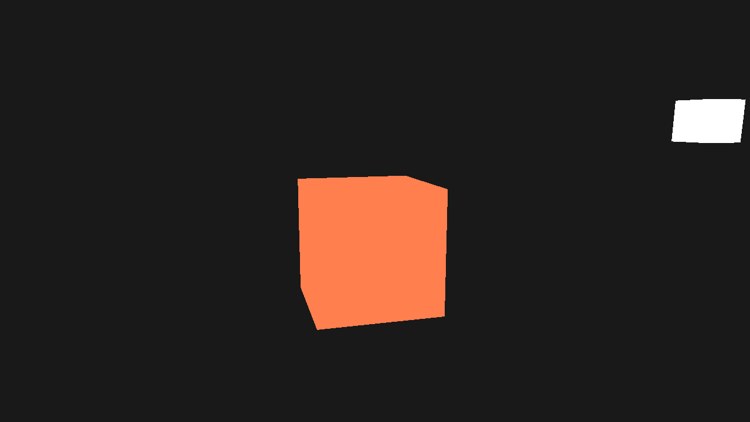
Admittedly not much to look at: a flat coral shape and a white square. Every face of the cube has exactly the same colour, because nothing in our shader yet cares which way a face points or where the light is. That changes in the very next chapter. As before, WASD moves the camera, space and shift move it up and down, and holding the right mouse button lets you look around.
The full program is here, the lighting shader here and the light cube's shader here.
Additional resources
- Packing rules for constant variables: Microsoft's description of how HLSL lays out a
cbuffer, with examples. - How to: create a constant buffer: the Direct3D 11 basics of constant buffers.
- LearnOpenGL's Colors: the OpenGL version of this chapter.
Exercises
- Change light_color to pure green,
(0, 1, 0), and check that the cube turns the dark green worked out above. Then try the olive light(0.33, 0.42, 0.18). - Make the light cube show the light's colour, by setting lamp_color from colors.light_color instead of white.
- Move pad0 in colors_constants so that it sits after light_color, next to pad1. The struct keeps its size, so nothing fails, but the cube changes colour. Work out from the packing rule which bytes the shader now reads as light_color, and explain the colour you see. (Put the padding back afterwards.)