Basic Lighting
Real light is hopelessly complicated. It bounces between surfaces, scatters inside materials, bends, splits into wavelengths, and a faithful simulation of all that is far beyond what we can do sixty times a second for a million pixels. So real-time graphics uses
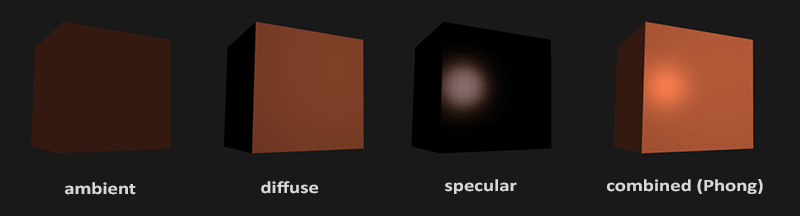
Ambient light: a small, even amount of light everywhere. Even on a dark night something is lit by something (the moon, a street lamp round the corner), so surfaces are almost never pure black.Diffuse light: the part that depends on which way the surface faces. The more squarely a surface faces the light, the brighter it is. This is the component that does most to make an object look solid.Specular light: the bright highlight on shiny things, where the light bounces off the surface straight into our eye. Highlights tend to take the colour of the light rather than of the object.
LearnOpenGL's picture above shows each part alone and then all three added up. We will add them to our coral cube one at a time, in basic_lighting.hlsl, starting with the easiest.
Ambient lighting
Light in a room does not just travel from the bulb to the table. It bounces off the walls, the ceiling and the floor, and some of that bounced light lands in places the bulb cannot see directly. Computing all those bounces is called
In code that is a constant: one tenth of the light's colour.
float3 ambient = 0.1 * light_color;Multiplied by the object's colour, as in Colors, that alone would give a very dark, completely flat coral cube. Flat because, like the shader of the previous chapter, it does not yet know anything about the shape of the object. For that we need the next part.
Diffuse lighting
Hold a sheet of paper under a lamp and tilt it. Facing the lamp head-on it is brightest; as it tilts away it gets darker, and edge-on it gets almost nothing. That is diffuse lighting: a surface's brightness depends on the angle between the light rays and the surface.

To measure that angle we need to know which way the surface faces. That is what a
And we already have a tool that turns two directions into "how aligned are they": the dot product. For unit vectors it is exactly the cosine of the angle between them, \(\vec{n} \cdot \vec{l} = \cos\theta\), which is 1 head-on and falls smoothly to 0 at 90 degrees. Beyond 90 degrees the light is behind the surface and the dot product goes negative. There is no such thing as negative light, so we clamp it at zero:
\[ \text{diffuse} = \max(\vec{n} \cdot \vec{l},\, 0) \cdot \text{light colour} \]
So for diffuse lighting the pixel shader needs two more things: the surface's normal, and the direction to the light, which in turn needs the position of the light and the position of the pixel itself.
Normal vectors
A single vertex has no surface, so it has no normal on its own. A normal belongs to the surface around it, and for a smooth model it is usually worked out from the neighbouring triangles. A cube is simple enough to write by hand: every vertex of the right face has normal (1, 0, 0), every vertex of the top face (0, 1, 0), and so on. Our cube's vertex data has carried these since the previous chapters, as the second attribute:
    // top (+y)
    -0.5,  0.5,  0.5,    0.0,  1.0,  0.0,   0.0, 1.0,
     0.5,  0.5,  0.5,    0.0,  1.0,  0.0,   1.0, 1.0,
     0.5,  0.5, -0.5,    0.0,  1.0,  0.0,   1.0, 0.0,
and the input layout already feeds it to the NORMAL semantic. The vertex shader takes all three attributes in one struct:
struct vs_in
{
    float3 position : POSITION;
    float3 normal : NORMAL;
    float2 uv : TEXCOORD;
};
The lamp shader still reads only POSITION, and since it builds its own input layout from the same element list, nothing about it needs to change. That is a small advantage of Direct3D's arrangement over OpenGL's here: in LearnOpenGL the lamp's VAO has to be updated for the new stride; for us the stride is given when the buffer is bound, and it has been 32 all along.
From the vertex shader to the pixel shader
The lighting happens in the pixel shader, once per pixel, so the vertex shader has to pass the normal along. In HLSL, everything a vertex shader hands to the pixel shader travels in its output struct. Each member gets a semantic, and the rasterizer interpolates every member across the triangle before the pixel shader sees it:
// Position and normal in world space, where the lighting is done.
struct vs_out
{
    float4 position : SV_Position;
    float3 world : WORLD;
    float3 normal : NORMAL;
    float2 uv : TEXCOORD;
};
SV_Position is the system value the rasterizer needs; WORLD, NORMAL and TEXCOORD are names of our own choosing (GLSL would declare them as out variables in one shader and matching in variables in the other). The pixel shader then simply takes the same struct as its parameter, ps_main(vs_out p), so the two sides cannot disagree.
Choosing a space
Before we can compare the normal with the light's direction, they must be expressed in the same coordinate space. LearnOpenGL works in
vs_out vs_main(vs_in v)
{
    vs_out o;
    float4 world = mul(model, float4(v.position, 1.0));
    o.world = world.xyz;
    o.position = mul(projection, mul(view, world));
    o.normal = mul((float3x3)normal_matrix, v.normal);
    o.uv = v.uv;
    return o;
}
Interpolated across the triangle, world gives every pixel its own world-space position. The normal goes through something called normal_matrix, which needs a section of its own.
The normal matrix
Why not simply multiply the normal by the model matrix, like the position? Two reasons. First, a normal is a direction, not a place, so moving an object must not change it. The translation lives in the fourth column of the model matrix, and taking only the upper-left 3x3 part, which is what the (float3x3) cast does, leaves it out.
Second, and more subtly, a model matrix that scales by different amounts along different axes breaks normals. Stretch a cube to twice its width: the faces tilt differently, but a normal transformed by the same stretch tilts the wrong way and is no longer perpendicular to its face.
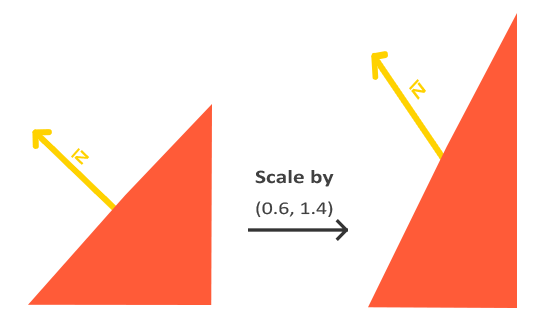
The fix is a different matrix for normals. Here is where it comes from. Take any vector \(\vec{t}\) lying along the surface; the normal is perpendicular to it, \(\vec{n} \cdot \vec{t} = 0\). After the model matrix \(M\), the surface vector becomes \(M\vec{t}\), and we want a matrix \(N\) such that the new normal \(N\vec{n}\) is still perpendicular to it:
\[ (N\vec{n}) \cdot (M\vec{t}) = \vec{n}^T N^T M \vec{t} = 0 \]
This holds for every \(\vec{t}\) along the surface if \(N^T M = I\), that is \(N = (M^{-1})^T\): the
GLSL has an inverse() function, and LearnOpenGL calls it in the vertex shader, while pointing out that inverting a matrix once per vertex is wasteful. HLSL has no inverse() at all, which settles the matter for us: we compute the normal matrix on the CPU, once per object, and send it in the transforms buffer. That is what
t[0].model = model;
t[0].normal_matrix = m4_normal_matrix(model);
with the helper in math.rin being exactly the formula:
m4_normal_matrix: proc(model: mat4) -> mat4 = {
    return m4_transpose(m4_inverse(model));
}
We send a full 4x4 matrix because a float3x3 in a constant buffer takes three registers with awkward padding; the shader's cast to float3x3 picks out the part it needs, and drops the translation along the way.
Calculating the diffuse colour
The light's position arrives in the lighting constant buffer at b1, next to the colours from the previous chapter:
cbuffer light : register(b1)
{
    float3 object_color;
    float3 light_color;
    float3 light_position;
};
Each float3 starts a fresh register, so the rin struct pads after each of them:
light_constants: struct = {
    object_color: vec3;
    pad0: f32;
    light_color: vec3;
    pad1: f32;
    light_position: vec3;
    pad2: f32;
}
Now the pixel shader has everything. It normalizes the interpolated normal, works out the unit vector from the pixel to the light, and takes the clamped dot product:
// Interpolation shortens normals between vertices; renormalize.
float3 n = normalize(p.normal);
float3 to_light = normalize(light_position - p.world);
...
float3 diffuse = max(dot(n, to_light), 0.0) * light_color;
Note the order of the subtraction: light_position - p.world points from the surface towards the light, which is the direction the formula wants. Adding ambient and diffuse and multiplying by the object's colour gives a cube whose faces finally differ: the ones turned towards the light are bright, the ones turned away are left with only the dim ambient glow.
Specular lighting
The last part of Phong's model is the highlight. Like diffuse light it depends on the normal and the light's direction, but it also depends on where we are looking from. Think of the surface as a slightly blurry mirror: the highlight shows up where the light, reflected in that mirror, comes straight at our eye.
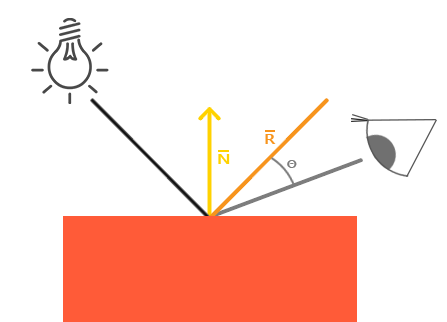
So we reflect the incoming light about the normal, and compare the reflected direction with the direction to the viewer. The closer they line up, the brighter the highlight. The comparison is, once again, a dot product.
For the direction to the viewer we need the camera's position in world space. That is the view_position member the transforms buffer has carried since Colors, filled once per frame:
t.view_position = cam.position;In the pixel shader:
float3 to_eye = normalize(view_position - p.world);
...
float3 reflected = reflect(-to_light, n);
float3 specular = 0.5 * pow(max(dot(to_eye, reflected), 0.0), 32.0) * light_color;
HLSL's
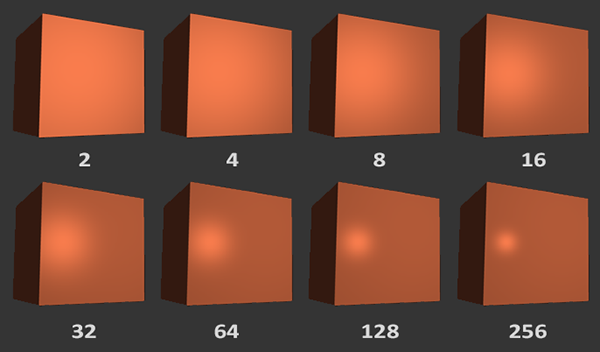
The factor 0.5 in front is the specular strength. At 1 the highlight would be very bright for a matte-looking coral surface; half is gentler. In the next chapter both numbers become properties of the material.
A note on spaces. Many renderers light in float3 in a constant buffer.
Putting it together
Here is the whole pixel shader:
float4 ps_main(vs_out p) : SV_Target
{
    // Interpolation shortens normals between vertices; renormalize.
    float3 n = normalize(p.normal);
    float3 to_light = normalize(light_position - p.world);
    float3 to_eye = normalize(view_position - p.world);

    float3 ambient = 0.1 * light_color;
    float3 diffuse = max(dot(n, to_light), 0.0) * light_color;
    float3 reflected = reflect(-to_light, n);
    float3 specular = 0.5 * pow(max(dot(to_eye, reflected), 0.0), 32.0) * light_color;

    return float4((ambient + diffuse + specular) * object_color, 1.0);
}
Three light contributions, added, then filtered by the object's colour. LearnOpenGL leaves its light standing still and suggests moving it as an exercise. Our lesson moves it from the start, because a moving light shows far better what each term does. Every frame the light goes round the cube in a circle of radius 2, one unit up:
light: light_constants = {
    .object_color = v3(1.0, 0.5, 0.31),
    .light_color = v3(1.0, 1.0, 1.0),
    .light_position = v3(2.0 * cosf(current_frame), 1.0, 2.0 * sinf(current_frame)),
};
and the light cube is drawn at the same place:
draw_cube(context, transforms_buffer, t&, m4_mul(m4_translate(light.light_position), m4_scale(v3(0.2, 0.2, 0.2))));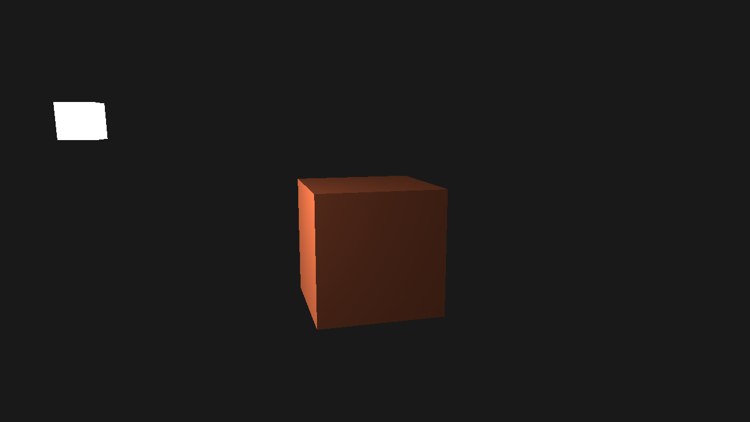
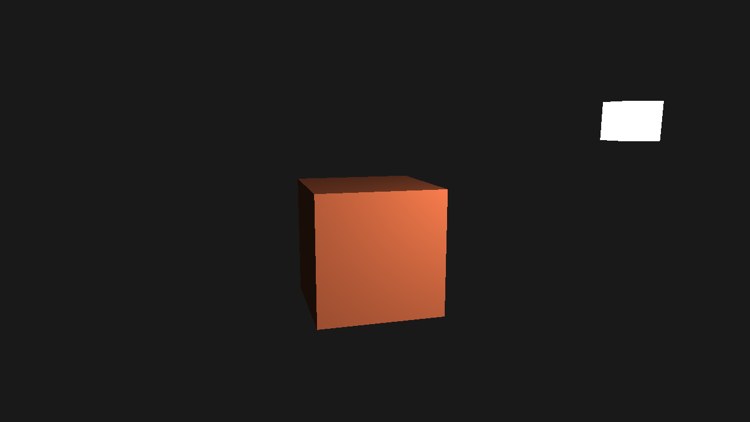
Two moments in the light's orbit. On the left the light has swung round to the side: the left face, turned towards it, is bright, while the front face, which it barely reaches, is left with ambient light. On the right the light is in front and to the right, and the front face is lit, brightest towards its top right corner, which is nearest the light. Fly around (WASD, right mouse button to look) and watch the highlight slide across the faces as you move: unlike the diffuse part, it depends on where you stand.
Phong and Gouraud
We compute the lighting once per pixel. When lighting was first done on graphics hardware it was usually computed once per vertex instead, in the vertex shader, and the resulting colours were interpolated across each triangle. There are far fewer vertices than pixels, so it was much cheaper. That per-vertex approach is called
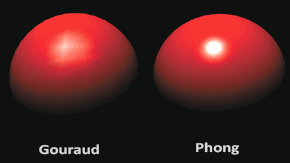
The difference shows most on highlights. A highlight that falls in the middle of a face, away from every vertex, simply vanishes with Gouraud shading, because none of the vertices sees it; one that falls near a vertex gets smeared along the triangle's edges, as in LearnOpenGL's picture above. On a densely tessellated model the two look similar. On our cube, with two triangles per face, Gouraud would look plainly wrong.
The full program is here, and its shader here.
Additional resources
- The normal matrix, at Lighthouse3D: another walk through why normals need the inverse transpose.
- reflect and Semantics: Microsoft's HLSL reference for the intrinsic we used and for passing data between stages.
- LearnOpenGL's Basic Lighting: the OpenGL version of this chapter.
Exercises
- Play with the numbers in the pixel shader: the ambient factor 0.1, the specular strength 0.5 and the shininess 32. Before each change, predict what will happen, then check.
- Scale the cube by
(1, 3, 1)in itsdraw_cube call, and indraw_cube send the model matrix itself as normal_matrix. Move the light around the tall faces and see the lighting go wrong; then putm4_normal_matrix back. - Do the lighting in view space instead of world space. You will need to move the light's position into view space on the CPU, and build the normal matrix from
view * model. - Implement Gouraud shading: compute the three terms in
vs_main , pass the resulting colour to the pixel shader, and return it there. Why does the highlight look so odd on the cube?