Gamma Correction
Once a frame is drawn, every pixel's colour is sent to the monitor, and we have been assuming all along that the monitor shows what we send it: that a value of 0.5 comes out as half the light of 1.0. It does not. The old cathode-ray tube monitors had a physical response in which doubling the input voltage gave much more than double the brightness; the relation is roughly a power curve with an exponent of about 2.2, called the monitor's
Human eyes are far more sensitive to differences between dark shades than between bright ones. A scale that steps evenly in perceived brightness is therefore not a scale that steps evenly in physical light, in photons per second. LearnOpenGL's picture shows both:

The top row looks evenly spaced to us. The bottom row is the one where each step really adds the same amount of light, and to our eyes it rushes through the darks and then crawls through the brights. A monitor's power curve maps the values it is sent onto something like the top row, so 8 bits per channel are spread where our eyes can tell them apart. That is good for displaying images, and it is a problem for rendering.
The problem
Lighting is arithmetic on physical light. Two equal lights on a surface give it twice the light of one; a light at half intensity gives half. Those sums are only right if the numbers we add are proportional to real light, which is what
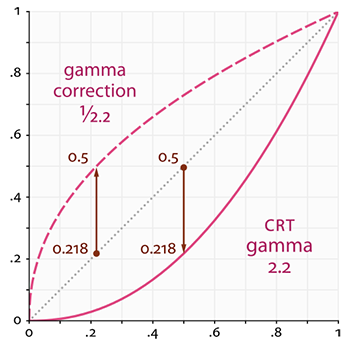
The dotted line is linear. The solid line below it is what the monitor does: a value of 0.5 is shown as about \(0.5^{2.2} \approx 0.22\) of full brightness. So if we light a surface with a dark red of (0.5, 0, 0), and then double the light, our maths says (1.0, 0, 0), twice as bright. On screen it goes from 0.22 to 1.0: more than four and a half times as bright. Both curves agree at 0 and at 1; it is everything in between that the monitor darkens.
Without knowing it we have been working in the monitor's space all along, not in linear space. Our lighting is not physically right, it only looks roughly right, because we tuned its numbers by eye on the same monitor. Lights end up set brighter than they should be, falloff formulas are chosen for how they look rather than how light behaves, and the more physically based the lighting becomes, the more these errors pile up.
Gamma correction
The fix is
With the same dark red: before display we apply the correction, \(0.5^{1/2.2} \approx 0.73\), and send 0.73. The monitor shows \(0.73^{2.2} \approx 0.5\), which is the value we computed. The monitor now displays the light our lighting actually calculated.
The curve with an exponent of 2.2 is close to the standard
When the hardware converts for us, this is the curve it uses. Real monitors vary a little around it, which is why games often offer a brightness or gamma slider.
There are two ways to apply the correction: let the hardware do it as colours are written, or do it ourselves at the end of the pixel shader.
sRGB render target views
OpenGL has a global switch for the first way: enable GL_FRAMEBUFFER_SRGB and from then on every colour written to an sRGB-capable framebuffer is encoded on the way in. Direct3D has no switch. Instead the conversion belongs to a _SRGB means "8-bit values on the sRGB curve": write linear values through a render target view with such a format and the hardware encodes them as it stores them; read through a shader resource view with one and it decodes them as it samples. Blending through an sRGB view also happens on decoded, linear values, as it should: the stored colour is decoded, blended with the new one, and encoded again.
It would be natural to make the swap chain's buffers DXGI_FORMAT_R8G8B8A8_UNORM_SRGB outright, but flip-model swap chains, which is what our lessons use (DXGI_SWAP_EFFECT_FLIP_DISCARD), do not accept _SRGB buffer formats. Instead the buffer stays DXGI_FORMAT_R8G8B8A8_UNORM, and we create a second render target view of it that reads the same bytes as sRGB:
// A second view of the same back buffer, as sRGB, for the corrected mode.
srgb_view: D3D11_RENDER_TARGET_VIEW_DESC = {
    .Format = DXGI_FORMAT.DXGI_FORMAT_R8G8B8A8_UNORM_SRGB,
    .ViewDimension = D3D11_RTV_DIMENSION.D3D11_RTV_DIMENSION_TEXTURE2D,
};
backbuffer_srgb_rtv: *ID3D11RenderTargetView = null;
ID3D11Device_CreateRenderTargetView(device, cast(backbuffer, *ID3D11Resource), srgb_view&, backbuffer_srgb_rtv&);
Until now we passed null for the description, which makes a view with the resource's own format. Passing one lets us choose a different format from the same family: R8G8B8A8_UNORM and R8G8B8A8_UNORM_SRGB have the same layout and differ only in how the values are interpreted, so Direct3D allows one texture to be seen either way. Which view we draw through decides whether the output is corrected. The lesson keeps both and picks one each frame:
target: *ID3D11RenderTargetView = gamma != 0 ? backbuffer_srgb_rtv : backbuffer_rtv;
clear_color: [4]f32 = { 0.0, 0.0, 0.0, 1.0 };
ID3D11DeviceContext_OMSetRenderTargets(context, 1, target&, depth_dsv);
ID3D11DeviceContext_RSSetViewports(context, 1, viewport&);
ID3D11DeviceContext_ClearRenderTargetView(context, target, clear_color[0]&);
The conversion is done by the output merger as part of writing the pixel, so it costs nothing. Note that the clear colour goes through the view too: clearing an sRGB view with 0.5 grey stores 0.5 encoded, which shows on screen as a lighter grey than clearing the plain view does. From the next lesson on, every program creates only the sRGB view of its back buffer and draws through it.
Converting to sRGB is the very last thing that should happen to a colour. After it, the values are no longer linear, and anything that adds, blends or filters them gets wrong results. Once we start rendering into intermediate textures, in HDR and Bloom, those stay linear, and only the final pass that writes the back buffer goes through the sRGB view.
Correcting in the shader
The other way is to apply the curve ourselves, at the end of the pixel shader, and write through a plain view:
float3 lit = ...;                           // lighting, in linear space
return float4(pow(lit, 1.0 / 2.2), 1.0);    // encode for the monitor
This gives full control: a gamma value the player can adjust, or the exact sRGB curve, or some other display curve entirely. The catch is that every shader that writes to the screen has to do it, and do it identically. In practice it is usually done once, in a final full-screen post-processing pass like the ones in Framebuffers, so that it happens in exactly one place. Our lessons use the sRGB view, which does the same job with nothing to forget.
sRGB textures
Correcting the output is only half the job. Every image we have loaded was painted, photographed or edited by someone looking at a monitor, so the colours stored in it are already in sRGB space: they are what looks right after the monitor's curve. Before gamma correction that happened to cancel out. We fed the stored values straight through the lighting and out to the screen, and the image looked as its author saw it.
With gamma correction on, those values get encoded a second time on the way out. The texture has effectively been corrected twice, and it looks washed out and far too bright. Our lighting must instead receive the texture's colours in linear space, which means decoding them as they are read. In a shader that would be pow(colour, 2.2) after every sample of every colour texture, but there is a better way: the texture format again. A texture created with an _SRGB format is decoded to linear by the sampler, for free, before filtering. The lessons'
// `srgb`: the file stores colours, gamma encoded, and sampling should decode
// them to linear. Data such as normals or roughness is linear already.
load_texture: proc(device: *ID3D11Device, context: *ID3D11DeviceContext, path: [*]const char, srgb: b32) -> *ID3D11ShaderResourceView = {
    ...
    desc: D3D11_TEXTURE2D_DESC = {
        ...
        .Format = srgb ? DXGI_FORMAT.DXGI_FORMAT_R8G8B8A8_UNORM_SRGB : DXGI_FORMAT.DXGI_FORMAT_R8G8B8A8_UNORM,
That is the equivalent of OpenGL's GL_SRGB8_ALPHA8 internal format. Alpha is never on the curve: only the red, green and blue channels are decoded.
Be careful which textures get the flag, though. Diffuse and albedo maps, anything that is a colour someone chose by eye, are almost always sRGB. Textures that hold data rather than colours are almost always linear: specular strength, roughness, height, and above all normal maps, whose values are vector components. Decode a normal map as sRGB and every normal is bent, and the lighting goes subtly wrong. The normal mapping lesson loads its brick colours with the flag set and its normal map with it clear.
The gamma lesson loads its one wood texture both ways, so it can show both the right and the wrong way:
wood_linear: *ID3D11ShaderResourceView = load_texture(device, context, filesystem_path("resources/textures/wood.png"), 0);
wood_srgb: *ID3D11ShaderResourceView = load_texture(device, context, filesystem_path("resources/textures/wood.png"), 1);bind_texture(context, 0, gamma != 0 ? wood_srgb : wood_linear);The shader does not know which one it got, and does not need to:
// An _SRGB texture is already linear here; the plain one is not, which
// is exactly the uncorrected mistake being shown.
float3 color = albedo.Sample(linear_wrap, p.uv).rgb;
So the round trip with everything in place is: sRGB texture, decoded to linear when sampled; lighting in linear space; linear result, encoded to sRGB when written. The uncorrected path does none of it, and the texture's values travel through the lighting as they are stored.
Attenuation
Gamma correction also changes which falloff looks right. Physically, the light from a point source spreads over a sphere whose area grows with the square of the distance, so its intensity falls off as the inverse square:
\[F_{att} = \frac{1}{d^2}\]Without gamma correction this law looks much too steep: lights seem to have a tiny reach and then plunge into darkness. That is why uncorrected renderers moved to softer formulas, like the constant-linear-quadratic one in Light casters, or simply \(1/d\), which is physically wrong but looks closer. The reason is the monitor's curve once more. An attenuation of \(1/d^2\) sent uncorrected is displayed as \((1/d^2)^{2.2} = 1/d^{4.4}\), far steeper than we asked for. The \(1/d\) falloff becomes \(1/d^{2.2}\) on screen, which happens to be close to the real thing. With gamma correction in place, the physical \(1/d^2\) is displayed as what it is, and now it is \(1/d\) that looks too weak and too wide.
The lesson's floor is lit by four point lights in a row, a tenth of a unit above the wood, with intensities of 0.25, 0.5, 0.75 and 1.0 from left to right. They are set up once, before the loop:
lights: lights_constants = {};
for (i: u32 = 0; i < 4; i += 1) {
    lights.positions[i] = v4(-3.0 + 2.0 * cast(i, f32), -0.4, 0.0, 0.0);
    level: f32 = 0.25 * cast(i + 1, f32);
    lights.colors[i] = v4(level, level, level, 0.0);
}
Positions and colours are vec4s even though only three components are used. In a constant buffer every array element starts on a new 16-byte register, so an array of float3 would leave a gap after each element that the rin side would have to pad by hand. Using four components makes the two layouts match with nothing to think about. The flag at the end gets three integers of padding to round the struct up to a whole register:
lights_constants: struct = {
    positions: [4]vec4;
    colors: [4]vec4;
    gamma: i32;
    pad: [3]i32;
}
The pixel shader adds up the four lights with Blinn-Phong from the previous chapter, choosing the falloff that suits each mode:
float3 lit = 0.0;
for (int i = 0; i < 4; i++)
{
    float3 to_light = light_positions[i].xyz - p.world;
    float d = length(to_light);
    to_light /= d;
    float3 halfway = normalize(to_light + to_eye);
    float diffuse = max(dot(n, to_light), 0.0);
    float spec = pow(max(dot(n, halfway), 0.0), 64.0);
    float falloff = gamma ? 1.0 / (d * d) : 1.0 / d;
    lit += (diffuse * color + spec * 0.3) * light_colors[i].rgb * falloff;
}
return float4(lit, 1.0);
There is no ambient term, so everything you see on the floor comes from the four lights. Tab switches all three things together: the render target view, the texture, and the falloff. Each mode is the best its own approach can do. The corrected mode on the left, which the program starts in, and the uncorrected one on the right:
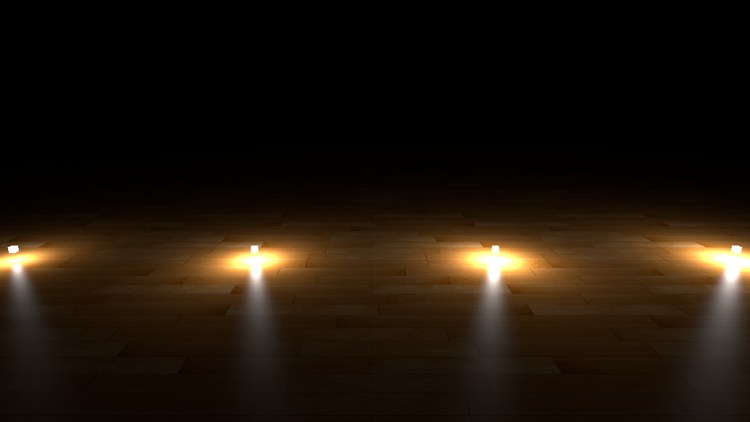
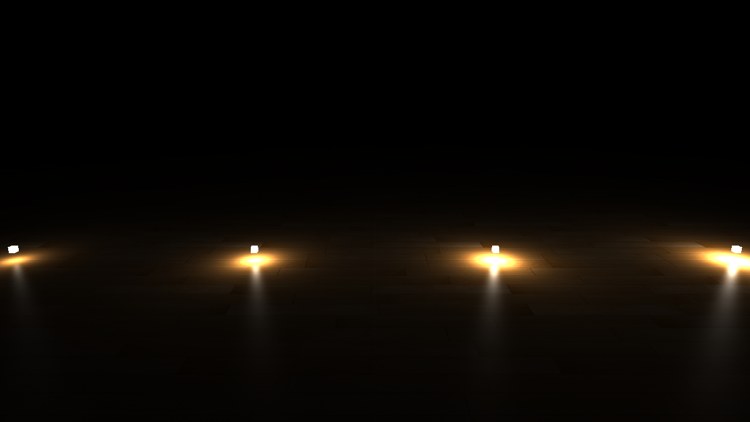
In the corrected image the wood between the lights is still visible, dim but with its grain, and each lamp's pool of light blends smoothly into the next. Uncorrected, the floor goes nearly black a short way from each lamp, and the dark wood between them loses its detail. The corrected version is the one whose numbers mean something: double a light's intensity and it really does look twice as bright. It also makes tuning easier, because a light set to physically sensible values looks sensible.
The more elaborate a renderer's lighting, the more it depends on this: HDR, bloom, deferred shading and all of PBR assume linear inputs and a corrected output. It is also why you should only fine-tune lighting parameters once gamma correction is in place, since numbers tuned on an uncorrected image are tuned to undo an error. The full program is here, and its shader here.
Additional resources
- What every coder should know about gamma: a thorough article by John Novak.
- Cambridge in Colour: gamma correction: gamma from a photographer's side.
- Gamma-correct lighting: David Rosen on what it changes in a game's lighting.
- Converting data for the color space: Microsoft on how Direct3D converts
_SRGBformats. - LearnOpenGL's Gamma Correction: the OpenGL version of this chapter, with GL_FRAMEBUFFER_SRGB and GL_SRGB textures.
Exercises
- Make the corrected mode use the
wood_lineartexture instead ofwood_srgb. What happens to the wood's colour, and why? - Make both modes use the same falloff, first \(1/d^2\) and then \(1/d\), and compare each with gamma correction on and off. Which falloff looks right in which mode?
- Drop the sRGB view and correct in the shader instead: draw through backbuffer_rtv in both modes, and in the corrected mode return
pow(lit, 1.0 / 2.2). Can you see a difference from the sRGB view? Where would one be expected?