Camera
In the last chapter the view matrix pushed the world three units away, and that was our whole camera. Direct3D has no idea what a camera is, and neither does OpenGL. What we can do is move the entire world the opposite way to how a camera would move, and the result on screen is indistinguishable from moving the camera. This chapter turns that idea into a learn/camera.rin, which every later lesson uses.
Camera/View space
View space is the world as the camera sees it, with the camera at the origin. To build the matrix that takes world coordinates there, we need four things in world space: where the camera is, which way it looks, and which ways are its right and its up. Those last three are unit vectors at right angles to each other, so together with the position they form a little coordinate system of the camera's own:
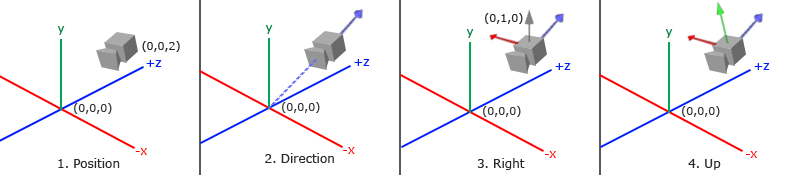
1. Camera position
The position is just a point in world space. The last chapter's view matrix put the camera three units back along +z, which is towards us in our right-handed world:
camera_pos: vec3 = v3(0.0, 0.0, 3.0);2. Camera direction
Next, which way it looks. Say it looks at the origin. Subtracting two points gives the vector from one to the other, so target - position points from the camera at its target, and normalized it is the
3. Right axis
The right vector is the camera's +x axis. The cross product gives us a vector perpendicular to two others, so if we can find a second vector besides front, we are done. The trick is to use the world's up, (0, 1, 0). It is not the camera's up unless the camera looks straight ahead, but it does not need to be: it only needs to lie in the plane that front and the camera's up share, and for any camera that is not looking straight up or down, it does. Then
\[\hat{R} = \text{normalize}(\text{front} \times \text{up}_{world})\]points to the camera's right. Swap the two and it points left.
4. Up axis
With front and right known, the camera's true up is perpendicular to both, which is one more cross product: \(\hat{U} = \hat{R} \times \text{front}\). Building a set of perpendicular axes from a couple of starting vectors like this is a form of the
Look At
Here is a useful fact about matrices: given three perpendicular unit axes, a matrix whose rows are those axes takes any vector into the coordinate system they define. Each row dotted with the vector gives the vector's component along that axis. Add a translation that first moves the camera's position to the origin, and we have a matrix that takes world space into the camera's view space, the
\(\color{red}R\) is the right vector, \(\color{green}U\) the up vector, \(\color{blue}D\) the backward-pointing direction from step 2, and \(\color{purple}P\) the camera's position. Read it right to left: first move the world so the camera's position is at the origin (that is why the translation is negated), then rotate it so the camera's axes line up with x, y and z. Both halves do the opposite of what the camera did, which is exactly the "move the world instead" idea.
math.rin builds this matrix in glm::lookAt, from a position, a target and a world up:
// The view matrix of a camera at `eye` looking at `target`.
m4_look_at: proc(eye: vec3, target: vec3, up: vec3) -> mat4 = {
    f: vec3 = v3_normalize(v3_sub(target, eye));
    s: vec3 = v3_normalize(v3_cross(f, up));
    u: vec3 = v3_cross(s, f);
    r: mat4 = m4_identity();
    r.m[0] = s.x;
    r.m[1] = s.y;
    r.m[2] = s.z;
    r.m[3] = -v3_dot(s, eye);
    r.m[4] = u.x;
    r.m[5] = u.y;
    r.m[6] = u.z;
    r.m[7] = -v3_dot(u, eye);
    r.m[8] = -f.x;
    r.m[9] = -f.y;
    r.m[10] = -f.z;
    r.m[11] = v3_dot(f, eye);
    return r;
}
It is steps 2 to 4 in order: f is front, s the right vector ("side"), u the camera's up, which needs no normalizing since it is the cross product of two perpendicular unit vectors. The three rows are R, U and D, with D written as -f. The last column is the two matrices of the formula already multiplied together: rotating the translation \(-P\) by the rows gives \(-R \cdot P\), \(-U \cdot P\) and \(-D \cdot P = f \cdot P\), which are the three dot products. So m4_look_at(v3(0.0, 0.0, 3.0), v3(0.0, 0.0, 0.0), v3(0.0, 1.0, 0.0)) gives exactly the m4_translate(v3(0.0, 0.0, -3.0)) of the last chapter.
Before taking input, a quick way to get a feel for it is to swing the camera around the scene. Keep the target at the origin and move the position around a circle, using a sine and a cosine of the time for x and z:
radius: f32 = 10.0;
eye: vec3 = v3(sinf(current_frame) * radius, 0.0, cosf(current_frame) * radius);
c.view = m4_look_at(eye, v3(0.0, 0.0, 0.0), v3(0.0, 1.0, 0.0));
Our lesson goes straight on to the controllable camera, but these three lines in place of its view matrix make the camera circle the crates once every six seconds or so, always facing the middle.
Walk around
To steer the camera ourselves we stop thinking in terms of a target and keep a position + front, however we move. That is how the camera asks for its view matrix:
camera_view: proc(c: *const camera) -> mat4 = {
    return m4_look_at(c[0].position, v3_add(c[0].position, c[0].front), c[0].up);
}
c is a pointer to the camera, and c[0] is the camera it points at: rin's spelling of C's c->position is c[0].position.
Moving is now adding to the position. Forward and backward go along front; left and right go along the right vector, the cross product of front and up, which gives the sideways "strafe" movement everyone knows from games. LearnOpenGL checks keys with
// The top bit of GetAsyncKeyState is set while a key is held, which makes the SHORT negative.
key_down: proc(key: i32) -> b32 = {
    return GetAsyncKeyState(key) < 0;
}
and
if (key_down('W')) { camera_process_keyboard(cam&, camera_movement.forward, delta_time); }
if (key_down('S')) { camera_process_keyboard(cam&, camera_movement.backward, delta_time); }
if (key_down('A')) { camera_process_keyboard(cam&, camera_movement.left, delta_time); }
if (key_down('D')) { camera_process_keyboard(cam&, camera_movement.right, delta_time); }
if (key_down(VK_SPACE)) { camera_process_keyboard(cam&, camera_movement.up, delta_time); }
if (key_down(VK_SHIFT)) { camera_process_keyboard(cam&, camera_movement.down, delta_time); }
Letter keys are identified by their capital letter's character code, so 'W' is the W key; other keys have VK_ names. Besides LearnOpenGL's four, Space and Shift move straight up and down, which makes it easier to get above or below the crates. The camera does the actual moving:
camera_process_keyboard: proc(c: *camera, direction: camera_movement, dt: f32) -> void = {
    step: f32 = c[0].speed * dt;
    switch (direction) {
        case camera_movement.forward: { c[0].position = v3_add(c[0].position, v3_scale(c[0].front, step)); }
        case camera_movement.backward: { c[0].position = v3_sub(c[0].position, v3_scale(c[0].front, step)); }
        case camera_movement.left: { c[0].position = v3_sub(c[0].position, v3_scale(c[0].right, step)); }
        case camera_movement.right: { c[0].position = v3_add(c[0].position, v3_scale(c[0].right, step)); }
        case camera_movement.up: { c[0].position = v3_add(c[0].position, v3_scale(c[0].world_up, step)); }
        case camera_movement.down: { c[0].position = v3_sub(c[0].position, v3_scale(c[0].world_up, step)); }
    }
}
Every vector it moves along is a unit vector, so a step is always step units long whatever way the camera faces. That matters for the right vector in particular: the cross product of front and world up gets shorter as front tilts towards up or down, and without normalizing it (the camera stores it normalized) strafing would slow down as you looked at the sky.
GetForegroundWindow() != window and ignores the keys while some other window has the focus, which is what Movement speed
If each frame moved the camera a fixed amount, its speed would depend on the frame rate: a machine drawing 300 frames a second would fly five times faster than one drawing 60. Our lessons present with IDXGISwapChain_Present(swap_chain, 1, 0), which waits for the display's vertical blank, so the frame rate is usually the monitor's refresh rate, but that is still 60 on one screen and 144 on another, and a slow frame now and then would make the camera stutter.
The usual cure is
// Seconds since the first call: what glfwGetTime is to LearnOpenGL.
get_time: proc() -> f32 = {
    now: LARGE_INTEGER = {};
    if (perf_frequency == 0) {
        QueryPerformanceFrequency(now&);
        perf_frequency = now.QuadPart;
        QueryPerformanceCounter(now&);
        perf_start = now.QuadPart;
    }
    QueryPerformanceCounter(now&);
    return cast(now.QuadPart - perf_start, f32) / cast(perf_frequency, f32);
}
Counting from the first call rather than from when Windows started keeps the number small, which matters for a 32-bit float: after a few days of uptime, raw seconds would no longer have the precision to tell one frame from the next. At the top of every frame the render loop works out the delta:
current_frame: f32 = get_time();
delta_time = current_frame - last_frame;
last_frame = current_frame;
and it is passed to
Look around
Moving without turning gets boring quickly. To look around we have to change front, and for that we use the mouse. Turning mouse movement into a direction takes a little trigonometry. If it does not interest you, the code is short and can be used as it is; come back to the explanation when you want it.
Euler angles
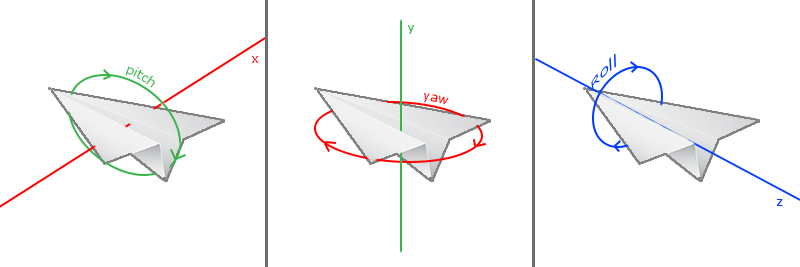
Pitch is how far we look up or down, yaw how far we look left or right, and roll how far we tilt sideways, as an aircraft banks. A fly camera like ours needs only yaw and pitch, and from those two angles we can work out front.
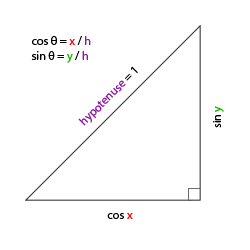
Start with a reminder about right-angled triangles. If the long side has length 1, the side next to an angle has length \(\cos\) of the angle and the side opposite it has length \(\sin\):
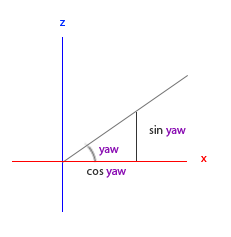
Now look down on the scene from above, along the y axis, so that the x and z axes form the floor. Put the yaw angle at the origin, measured from the x axis. A unit-length front vector is the long side of a triangle whose x side is \(\cos(\text{yaw})\) and whose z side is \(\sin(\text{yaw})\):
Pitch works the same way, but in the vertical plane: the y component of front is \(\sin(\text{pitch})\), and the part along the floor shrinks to \(\cos(\text{pitch})\):
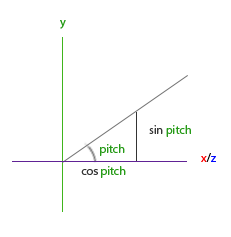
Since the floor part is now only \(\cos(\text{pitch})\) long, both floor components get multiplied by it, and the whole thing is:
\[\text{front} = \begin{pmatrix} \cos(\text{yaw}) \cos(\text{pitch}) \\ \sin(\text{pitch}) \\ \sin(\text{yaw}) \cos(\text{pitch}) \end{pmatrix}\]In the camera, along with the right and up vectors that follow from it:
camera_update_vectors: proc(c: *camera) -> void = {
    yaw: f32 = radians(c[0].yaw);
    pitch: f32 = radians(c[0].pitch);
    c[0].front = v3_normalize(v3(cosf(yaw) * cosf(pitch), sinf(pitch), sinf(yaw) * cosf(pitch)));
    c[0].right = v3_normalize(v3_cross(c[0].front, c[0].world_up));
    c[0].up = v3_normalize(v3_cross(c[0].right, c[0].front));
}
The right and up are steps 3 and 4 from the start of the chapter, recomputed whenever the angles change. With a yaw of 0 the formula points front along +x. Our scenes are laid out down -z, so a camera that should look straight into them needs a yaw of -90 degrees, as the comment in the camera struct says. Our lesson starts the camera a little to the left of and above the crates and turned towards them:
cam = camera_create(v3(-1.5, 1.0, 4.0), -70.0, -10.0);that is, at (-1.5, 1, 4), with a yaw of -70 degrees (20 degrees to the right of straight down -z) and a pitch of -10 (looking slightly down).
Mouse input
Yaw and pitch come from the mouse: moving it sideways changes the yaw, moving it up and down changes the pitch. Each frame we compare where the mouse is with where it was the frame before, and turn by the difference.
LearnOpenGL hides and captures the cursor with
cursor: POINT = {};
GetCursorPos(cursor&);
...
// Hold the right mouse button to look around.
if (key_down(VK_RBUTTON)) {
    // Screen y grows downwards, so moving the mouse up is a negative dy: pitch up.
    camera_process_mouse(cam&, cast(cursor.x - last_cursor.x, f32), cast(last_cursor.y - cursor.y, f32));
}
last_cursor = cursor;
Notice that last_cursor is updated every frame, whether the button is held or not, and also while another window has the focus. That avoids the problem LearnOpenGL solves with its firstMouse flag: when the cursor is first captured, the first offset is measured from some stale position and the view jumps. Here the previous position is never more than a frame old, so the first frame of a drag turns the camera only by however far the mouse moved in that frame.
The camera turns the offsets into angles:
// Pitch stops short of straight up and down, where the view would flip.
camera_process_mouse: proc(c: *camera, dx: f32, dy: f32) -> void = {
    c[0].yaw += dx * c[0].sensitivity;
    c[0].pitch = clampf(c[0].pitch + dy * c[0].sensitivity, -89.0, 89.0);
    camera_update_vectors(c);
}
sensitivity is 0.1, a tenth of a degree per pixel; without it the camera would spin wildly. Yaw is left free, so we can turn round as often as we like. Pitch is clamped to 89 degrees either way, and the reason goes back to step 3. At a pitch of exactly 90, front would point straight along the world up, and the cross product of two parallel vectors is zero.
Zoom
Last, the scroll wheel zooms. In the last chapter we saw that the field of view sets how much of the scene fits on the screen. Make it smaller and a smaller part of the world is spread over the same screen, which looks like zooming in, exactly like a telephoto lens.
A turn of the wheel is an event, not a state we can poll, so it arrives in the window procedure as a WM_MOUSEWHEEL message, where LearnOpenGL would register a scroll callback:
if (msg == WM_MOUSEWHEEL) {
    // The high word of wparam is the distance turned, 120 per notch.
    scroll += cast(cast((wparam shr 16) & 0xffff, i16), f32) / 120.0;
    return 0;
}
The distance is a signed 16-bit number, positive when the wheel turns away from you, in units of 120 per notch (finer-grained wheels report fractions of a notch). We collect it in scroll, and
camera_process_scroll: proc(c: *camera, notches: f32) -> void = {
    c[0].zoom = clampf(c[0].zoom - notches * 2.0, 1.0, 45.0);
}
Each notch narrows the field of view by 2 degrees, from 45 degrees at the widest down to 1. The projection matrix is now rebuilt every frame with the camera's zoom as its field of view, and the view matrix comes from the camera:
c: object_constants = {
    .view = camera_view(cam&),
    .projection = m4_perspective(radians(cam.zoom), cast(scr_width, f32) / cast(scr_height, f32), 0.1, 100.0),
};
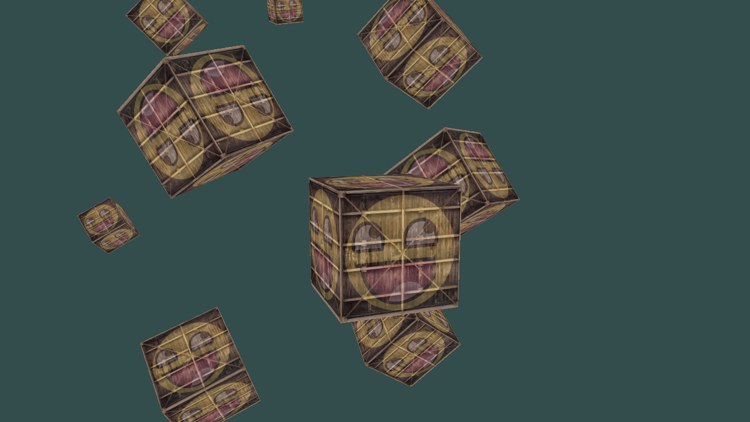
That is everything. The ten crates are the same as in the last chapter, standing still this time so that the only motion is ours. Fly in among them with W A S D, hold the right button to look around, and scroll to zoom:
Camera class
All of this is in includes/learn/camera.rin, so that later lessons can use a camera without repeating it, just as LearnOpenGL moves its camera into a Camera class. rin has structs and procedures rather than classes, so the camera is a struct:
camera: struct = {
    position: vec3;
    front: vec3;
    up: vec3;
    right: vec3;
    world_up: vec3;
    yaw: f32;            // degrees; -90 looks down -z
    pitch: f32;          // degrees
    speed: f32;          // units per second
    sensitivity: f32;    // degrees per pixel of mouse movement
    zoom: f32;           // vertical field of view, degrees
}
with procedures that take a pointer to it:
This is a fly camera built on Euler angles, which suits looking around a scene, but every kind of camera has its own catches. Ours cannot look straight up or down, and its fixed world up of (0, 1, 0) means it cannot roll: a flight-simulator camera that banks needs a different approach, usually with quaternions. A first-person camera that walks rather than flies needs movement confined to the floor, which is one of the exercises below.
The full program is here, its shaders here, and the camera here.
Additional resources
- GetAsyncKeyState and WM_MOUSEWHEEL: Microsoft's reference for the two ways our lessons read input.
- Acquiring high-resolution time stamps: how
QueryPerformanceCounter works and why to prefer it. - LearnOpenGL's Camera: the OpenGL version of this chapter, with GLFW's callbacks and a captured cursor.
Exercises
- Turn the fly camera into a first-person camera that stays on the floor: looking around works as before, but W A S D move only in the xz plane, and Space and Shift do nothing. (Moving along front with its y component removed is not quite enough: normalize it again.)
- Write your own look-at as the product of the two matrices in the formula at the start of this chapter, built from
m4_identity and the R, U and D vectors, and use it in place ofm4_look_at incamera_view . Nothing should change on screen. - Make the camera behave like LearnOpenGL's: always looking, without holding a button. Hide the cursor with
ShowCursor , and every frame move it back to the centre of the window withSetCursorPos , measuring the offset from the centre instead of from last_cursor.