Materials
Different things answer light differently. A steel kettle shows a small, hard highlight; a clay pot a broad, dull one, or none at all. A rubber ball and a glass marble of the same red look nothing alike under the same lamp. Our coral cube from Basic Lighting can only be one thing: its colour, an ambient factor of 0.1, a specular strength of 0.5 and a shininess of 32, all written into the shader. To show other kinds of surface, we need to pull those numbers out into a description of the surface. That description is a
The Phong model has three terms, so the natural material has a colour for each of them, plus the shininess:
- the
ambient colour: what the surface reflects of the ambient light. Usually the surface's own colour. - the
diffuse colour: what it reflects of direct light. This is what we would normally call "the colour of the object", and usually the same as the ambient colour. - the
specular colour: the colour of the highlight. For most materials a grey, since the highlight takes its colour from the light; metals tint it. - the
shininess : the exponent from the previous chapter, which sets how tight the highlight is.
With those four values a surprising range of real materials can be imitated. There is a well-known table of them at devernay.free.fr, giving values for gold, jade, chrome, rubber and more, and LearnOpenGL's picture shows a few of them on the cube:
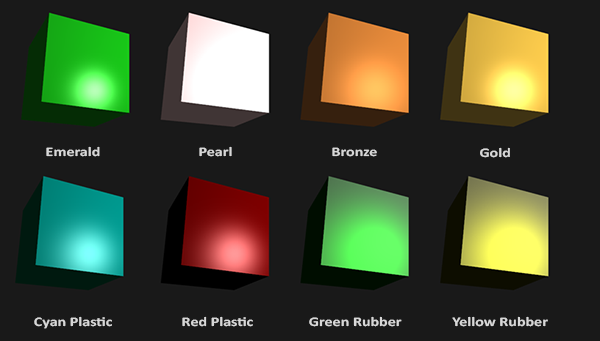
Even on a plain cube they read as different stuff. With a more interesting shape (we load real models in the Model chapter) the effect is stronger still. Choosing good material values is mostly practice and experiment; a wrong one can make an object look like plastic, or like nothing at all.
Setting materials
In GLSL, LearnOpenGL gathers the four values in a struct and declares one uniform of that type. In HLSL the natural home for a group of values that change per object is a constant buffer of its own. Our lesson's shader, materials.hlsl, declares one in register b1:
cbuffer material : register(b1)
{
    float3 material_ambient;
    float3 material_diffuse;
    float3 material_specular;
    float material_shininess;
};
A cbuffer is itself a kind of struct, so there is no need for a second struct inside it; the material_ prefix does the job of LearnOpenGL's material.. Let's work out its layout with the packing rule from Colors. The three colours each need a register of their own, since a float3 cannot share with another float3. But the shininess is a single float, and it fits in the four bytes left over after material_specular. So the rin struct pads after the first two colours and lets the shininess fill the third register:
material_constants: struct = {
    ambient: vec3;
    pad0: f32;
    diffuse: vec3;
    pad1: f32;
    specular: vec3;
    shininess: f32;
}
Forty-eight bytes, three registers, no waste. With these, the pixel shader reads each property where it used to have a constant:
float3 ambient = light_ambient * material_ambient;
float3 diffuse = light_diffuse * max(dot(n, to_light), 0.0) * material_diffuse;
float spec = pow(max(dot(to_eye, reflect(-to_light, n)), 0.0), material_shininess);
float3 specular = light_specular * spec * material_specular;

return float4(ambient + diffuse + specular, 1.0);
Each term is now a light colour times a material colour, and the final colour is their sum. There is no separate object colour any more: the material's colours have taken its place. (Where the light_ values come from is the next section.)
The material is filled once, before the render loop, as coral plastic: a coral body under a medium grey highlight with shininess 32:
// Coral plastic: a coloured body under a white, fairly tight highlight.
material: material_constants = {
    .ambient = v3(1.0, 0.5, 0.31),
    .diffuse = v3(1.0, 0.5, 0.31),
    .specular = v3(0.5, 0.5, 0.5),
    .shininess = 32.0,
};
update_buffer(context, material_buffer, material&, sizeof(material_constants));
Writing it once is enough. A constant buffer keeps its contents until we write to it again, so binding it each frame is all that is needed. That is the Direct3D counterpart of setting four uniforms, material.ambient and so on, one name at a time: we fill a struct on the CPU and hand the whole thing over.
Light properties
Suppose for a moment that the light gave every term at full strength, white, so that each term was simply the material's colour. Our cube would then be far too bright: the ambient term alone would paint it fully coral, and the diffuse term would add the same again on any face turned towards the light, pushing the red channel past 1, where it clips.
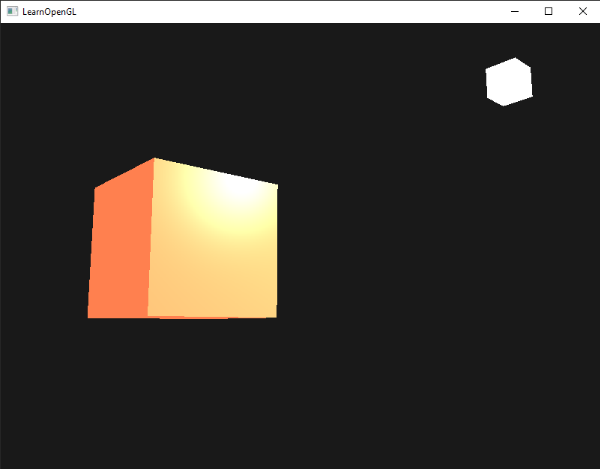
LearnOpenGL's picture shows that washed-out look. In terms of numbers: the ambient term would be \((1, 0.5, 0.31)\) everywhere, already the full coral colour before any direct light at all. In the last chapter we tamed that with the factors 0.1 and 0.5. Those factors really belong to the light, not the surface: a dim lamp gives less of everything, and a room full of bounced light has more ambient. So a light gets the same three colours a material has, saying how much ambient, diffuse and specular light it gives out. The light's constant buffer, in register b2:
cbuffer light : register(b2)
{
    float3 light_position;
    float3 light_ambient;
    float3 light_diffuse;
    float3 light_specular;
};
Four float3s, so four registers, each padded on the rin side:
light_constants: struct = {
    position: vec3;
    pad0: f32;
    ambient: vec3;
    pad1: f32;
    diffuse: vec3;
    pad2: f32;
    specular: vec3;
    pad3: f32;
}
Typical values follow the roles of the terms. The ambient part is kept low, so it lifts the shadows without washing everything out. The diffuse part is the colour we think of as "the light's colour". The specular part is usually left at full white, so highlights stay bright. Both buffers are bound before the cube is drawn, the material to b1 and the light to b2:
bind_constants(context, 1, material_buffer);
bind_constants(context, 2, light_buffer);
Why two buffers, rather than one holding both? Because they change at different rates. The material is written once, before the loop, and never again. The light, as we will see in a moment, is rewritten every frame. Grouping constants by how often they change is the usual way to lay out constant buffers in Direct3D: each update rewrites a whole buffer, so nothing that stays put should share a buffer with something that changes all the time. The transforms buffer at b0, rewritten for every object, is the third rate. With many objects each wearing a different material, the material buffer would be rewritten per object too, and the light buffer, shared by all objects, still only once a frame.
The light cube, meanwhile, is unaffected by all of this. Its shader reads its colour from b1, the same slot the material uses; before drawing it, the lesson binds the lamp's colour buffer there instead, exactly as in Colors. A register holds whatever was bound to it last.
Let's check the numbers. With a white light of diffuse 0.5 and ambient a fifth of that, 0.1, the ambient term of our coral cube is \(0.1 \times (1, 0.5, 0.31) = (0.1, 0.05, 0.031)\): a dim glow, the same as the ambient factor of 0.1 gave us in the previous chapter. A face turned squarely to the light adds \(0.5 \times (1, 0.5, 0.31)\) of diffuse light on top, so it reaches a little over half of full coral, and the highlight, at its peak, adds \(1 \times 0.5 = 0.5\) of white. The result resembles the previous chapter's, with the lit faces somewhat dimmer, since the diffuse part is now at half strength rather than full. But now every one of those numbers can be changed from the program, per light and per object.
Different light colours
So far our light has only been white or grey, which changes how bright the object is but not its hue. Now that the light has colours of its own, let's give it real ones, and change them over time. Our lesson makes a colour from three sine waves at different speeds, so the channels drift in and out of step:
color: vec3 = v3(sinf(current_frame * 2.0), sinf(current_frame * 0.7), sinf(current_frame * 1.3));
color = v3_add(v3_scale(color, 0.5), v3(0.5, 0.5, 0.5));
A sine runs from -1 to 1. LearnOpenGL feeds it straight in, so for long stretches some channels are negative and simply come out black. We scale and shift it to run from 0 to 1 instead, so every channel spends its time at a sensible brightness. The light then takes half of that colour as its diffuse part, and a fifth of that as ambient:
diffuse: vec3 = v3_scale(color, 0.5);
light: light_constants = {
    .position = v3(1.2, 1.0, 2.0),
    .ambient = v3_scale(diffuse, 0.2),
    .diffuse = diffuse,
    .specular = v3(1.0, 1.0, 1.0),
};
The light stands still this time, at the same place as in Colors, so the only thing changing is its colour. And the light cube shows the colour too, which LearnOpenGL leaves as an exercise; the lamp shader's colour buffer was made for this:
lamp_color: vec4 = v4(color.x, color.y, color.z, 1.0);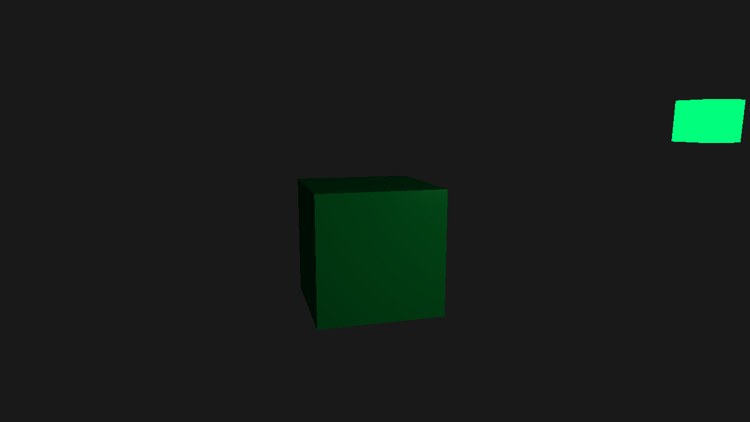
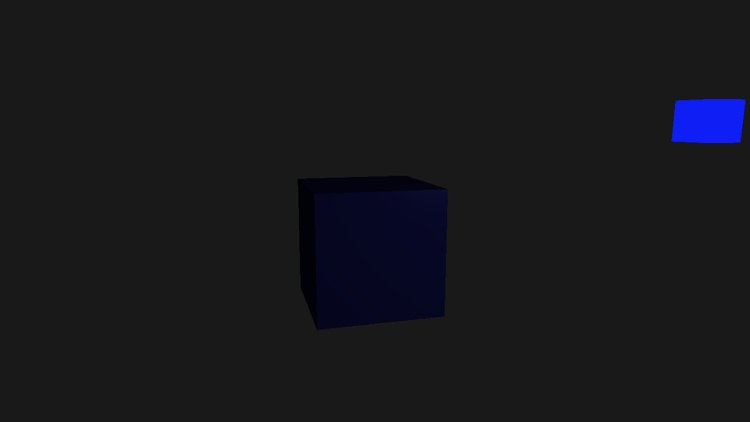
Two moments: under a green light the coral cube is a dark green, and under a blue one nearly black-blue, for the reasons we worked out in Colors: coral reflects only half the green that reaches it and less than a third of the blue. Leave it running and watch the colours cycle. The body of the cube takes the product of the light's colour and coral, but a highlight, when you find one, takes the light's colour almost untouched, since the specular material is a neutral grey and the light's specular part is white. That is the split this chapter is about: the material says what is reflected, the light says what there is to reflect.
The full program is here, and its shader here.
Additional resources
- OpenGL/VRML materials: the table of ambient, diffuse, specular and shininess values for real materials.
- Shader constants: Microsoft's description of
cbufferdeclarations and registers. - LearnOpenGL's Materials: the OpenGL version of this chapter.
Exercises
- Fix the light at white, with
.diffuse = v3(1.0, 1.0, 1.0)in its initializer and the ambient and specular at 1 as well, then give the cube a material from the table, say cyan plastic (ambient 0.0, 0.1, 0.06; diffuse 0.0, 0.50980392, 0.50980392; specular 0.50196078 for all three; shininess 0.25 in the table, which is scaled by 128, so 32). The table's values assume a light at full strength in every term, which is why the light must be white. - Try a metal from the table, such as gold or chrome. Notice that metals have a coloured specular value; move around until you see the highlight, and compare its colour with the plastic's.
- Make the light circle the cube again, as in Basic Lighting, while its colour keeps changing.